How to Update My Claims
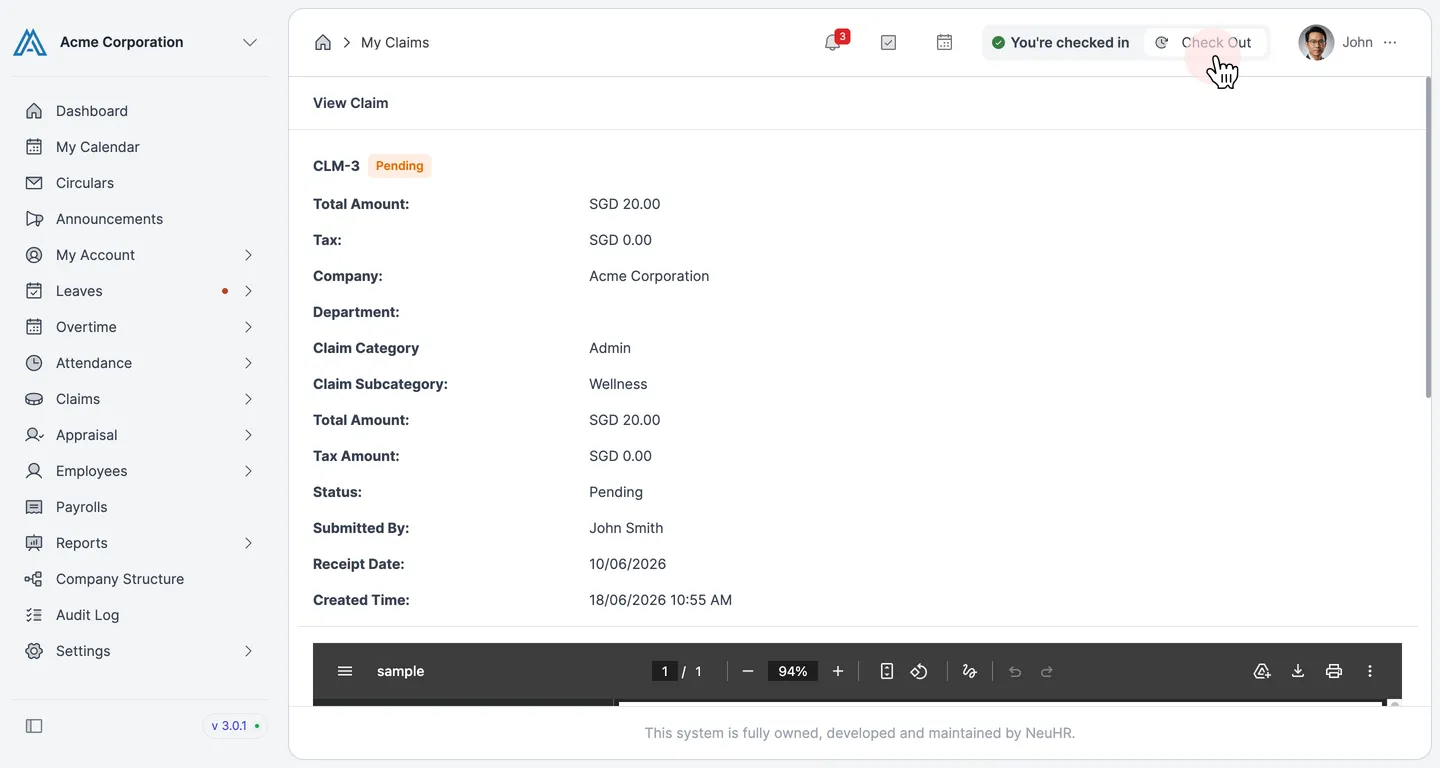
You can update a claim as long as it is still in Pending status. Once a claim has been endorsed or approved, it can no longer be edited.
-
Go to My Claims
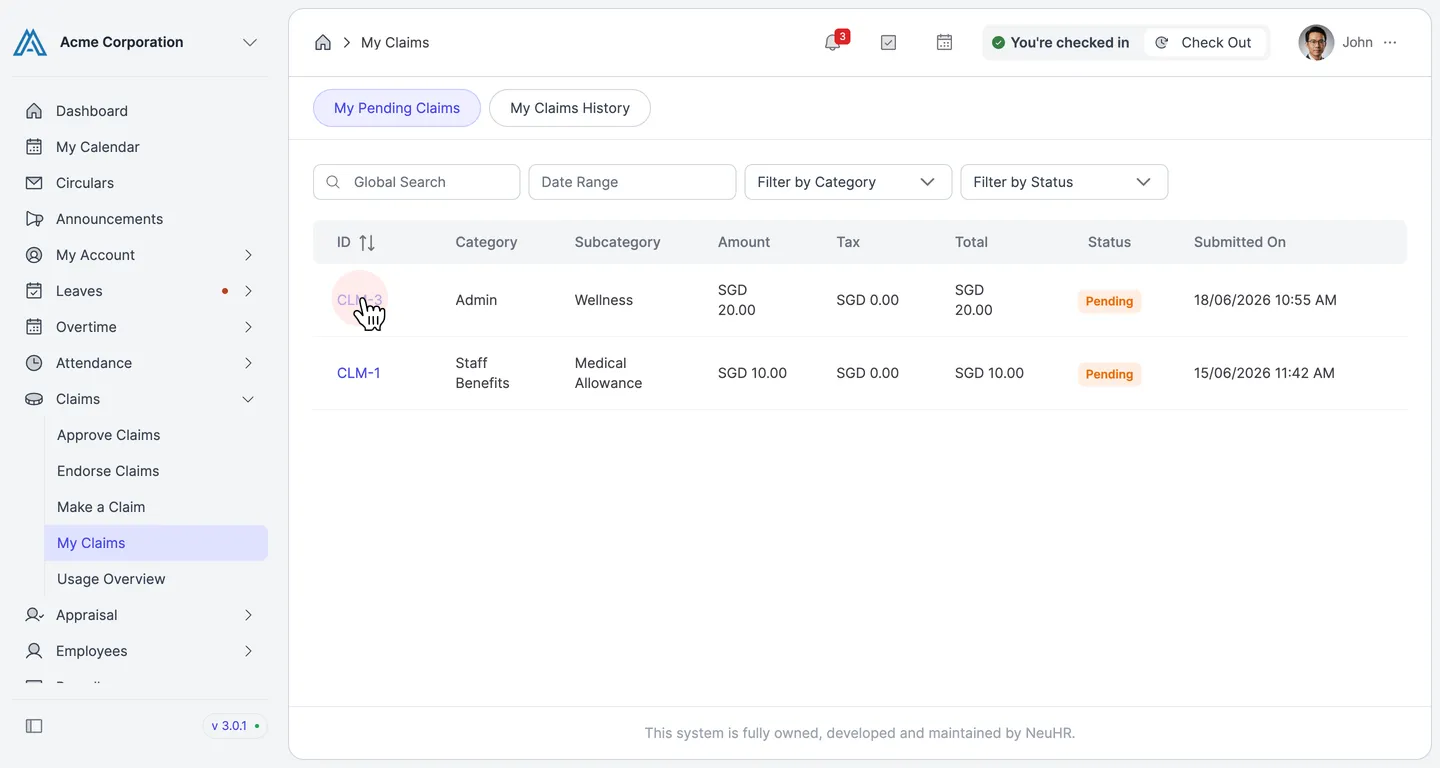
Section titled “Go to My Claims”From the left sidebar, expand Claims and click My Claims. The My Pending Claims tab shows your submitted claims.
Click the claim ID (e.g., CLM-3) that you want to update.
-
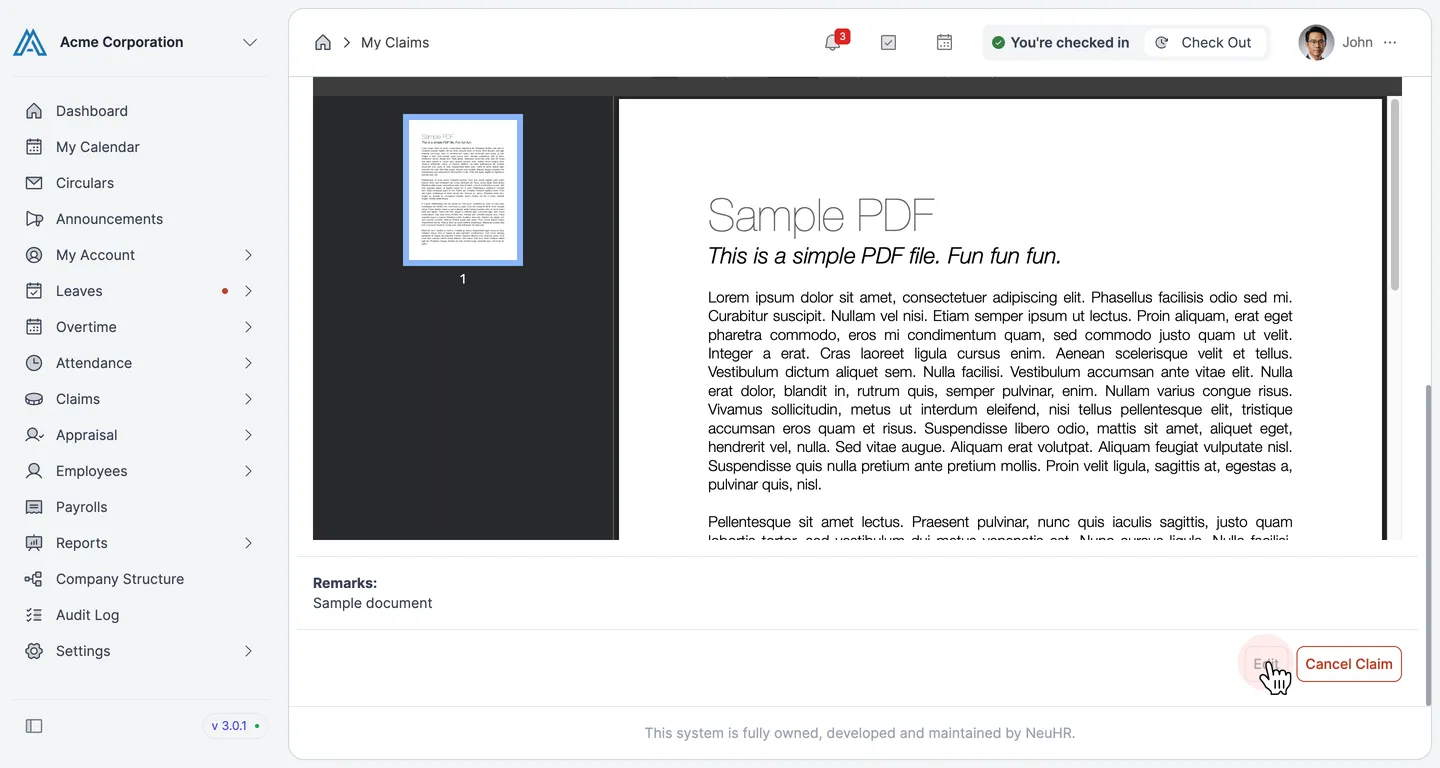
Click Edit
Section titled “Click Edit”The View Claim page opens showing the claim details and the attached receipt. Scroll down and click the Edit button at the bottom right.
-
Update the claim details
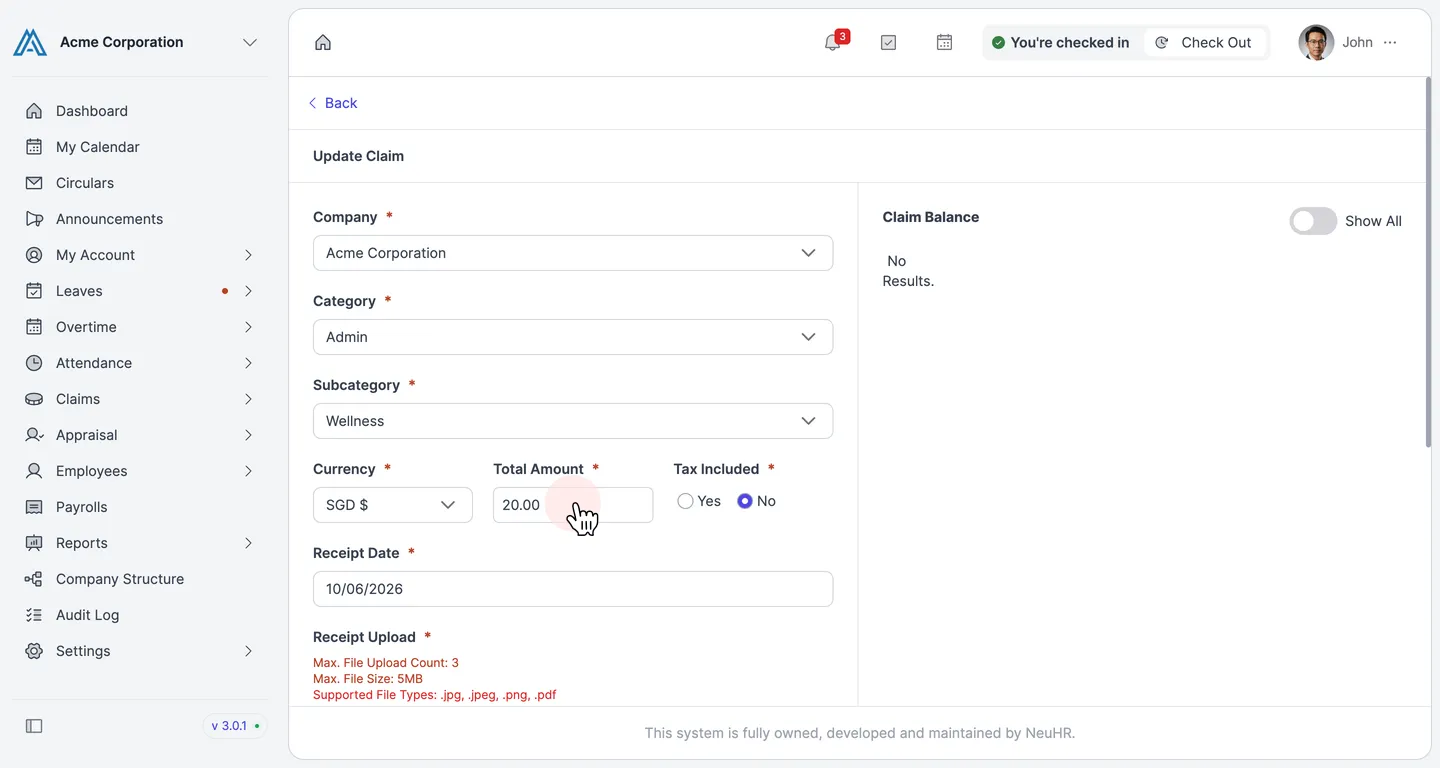
Section titled “Update the claim details”The Update Claim page opens with all editable fields pre-filled. Update any fields you need to change:
- Company and Category / Subcategory
- Currency and Total Amount
- Tax Included (Yes / No)
- Receipt Date
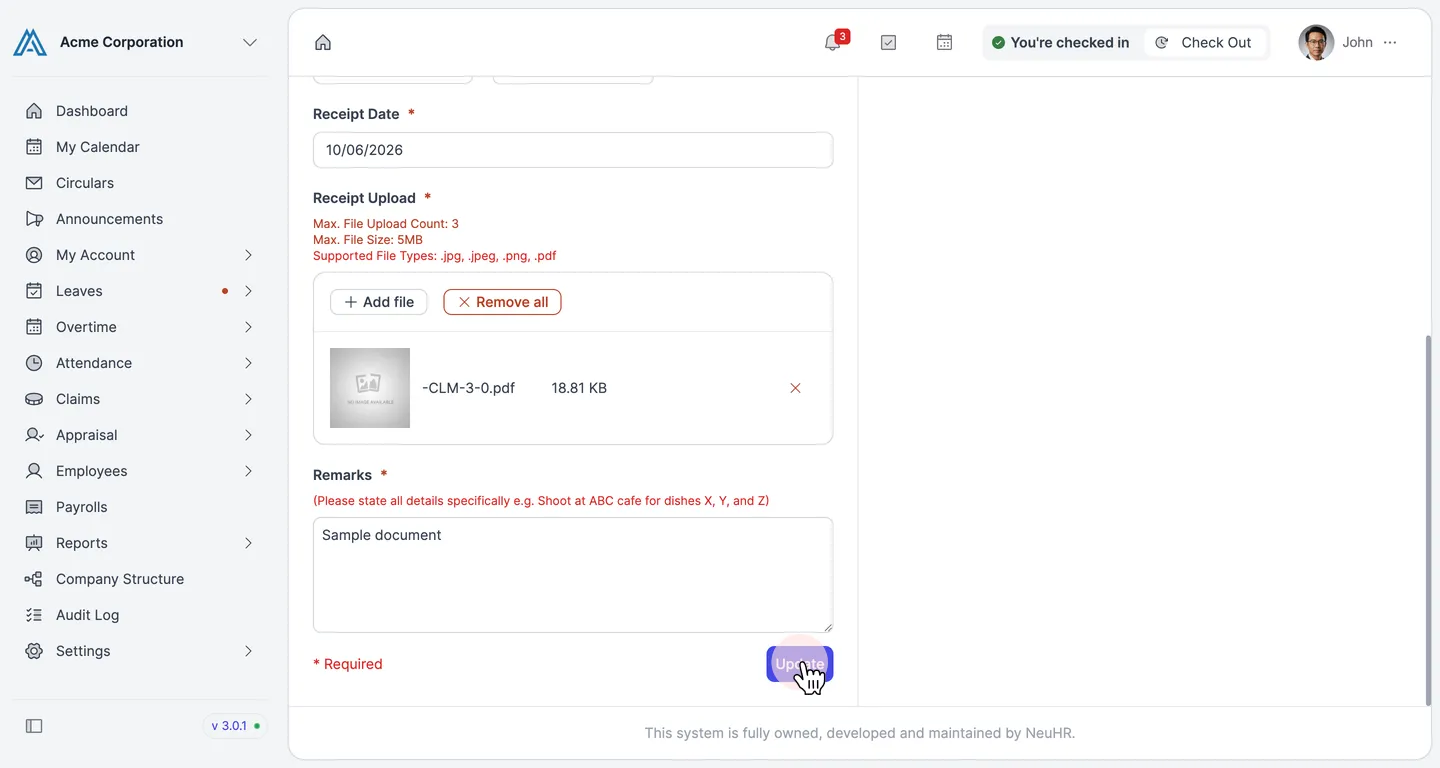
- Receipt Upload — add or remove receipt files
-
Update remarks and submit
Section titled “Update remarks and submit”Scroll down to the Remarks field. Update your notes if needed, then click Update to save the changes.
-
Confirm the result
Section titled “Confirm the result”A green “Claim has been updated” notification confirms your changes were saved. You are returned to the View Claim page showing the updated claim details.