How to Input Appraisal as Appraisee
This guide shows you how to fill in and submit your appraisal as an appraisee in NeuHR.
-
Navigate to Appraisal
Section titled “Navigate to Appraisal”From the sidebar, click on
Appraisalto expand the menu, then click onAppraisal.You will see the
My Appraisaltab listing all appraisal sessions assigned to you. Click on the session name (e.g.,HR 2026 H1) to open it.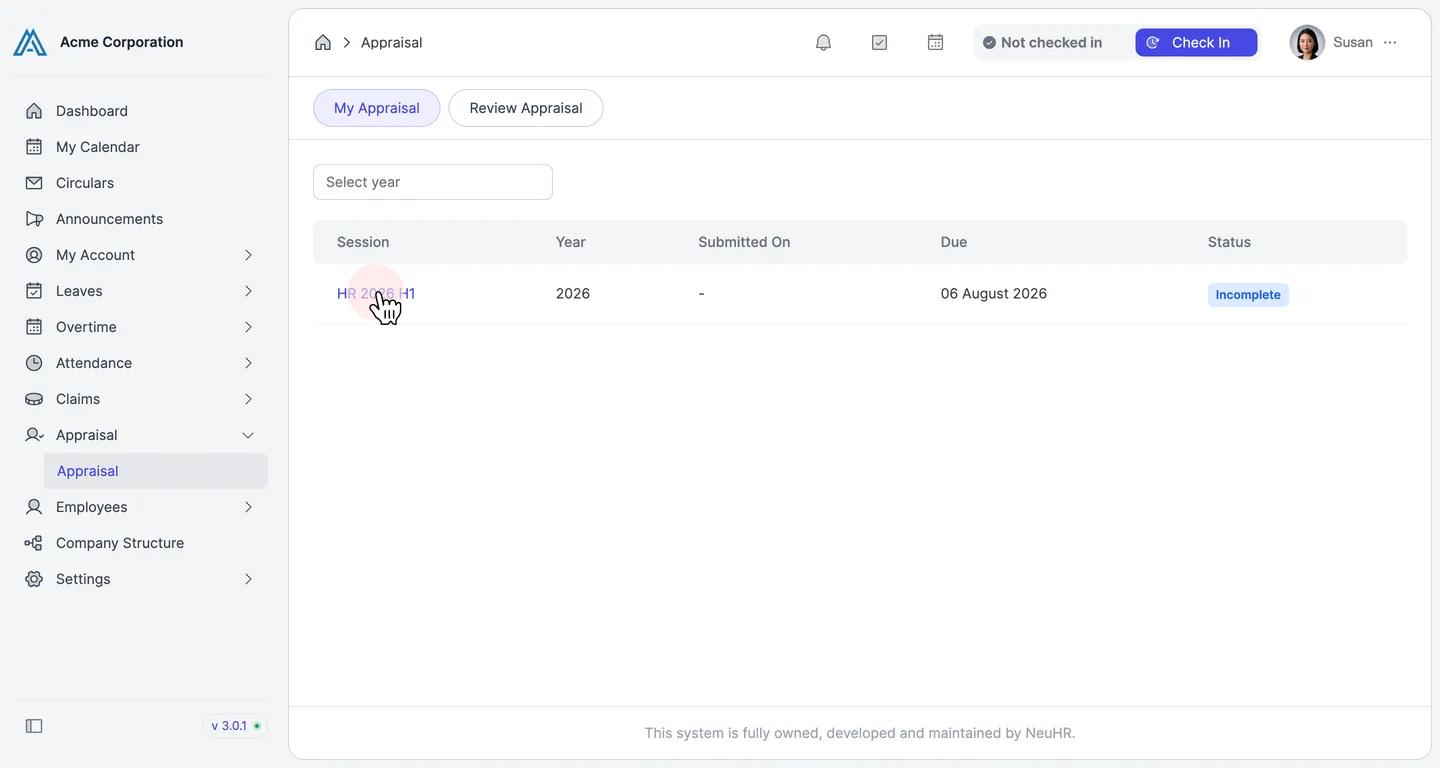
-
Review Your Appraisal Details
Section titled “Review Your Appraisal Details”The
My Appraisal Detailspage shows your session information including Session Name, Assessment for, Job Title, Department, Appraiser(s), Start Date, and End Date.The form is divided into three sections:
Notable Achievements,Performance Assessments, andGoal Setting.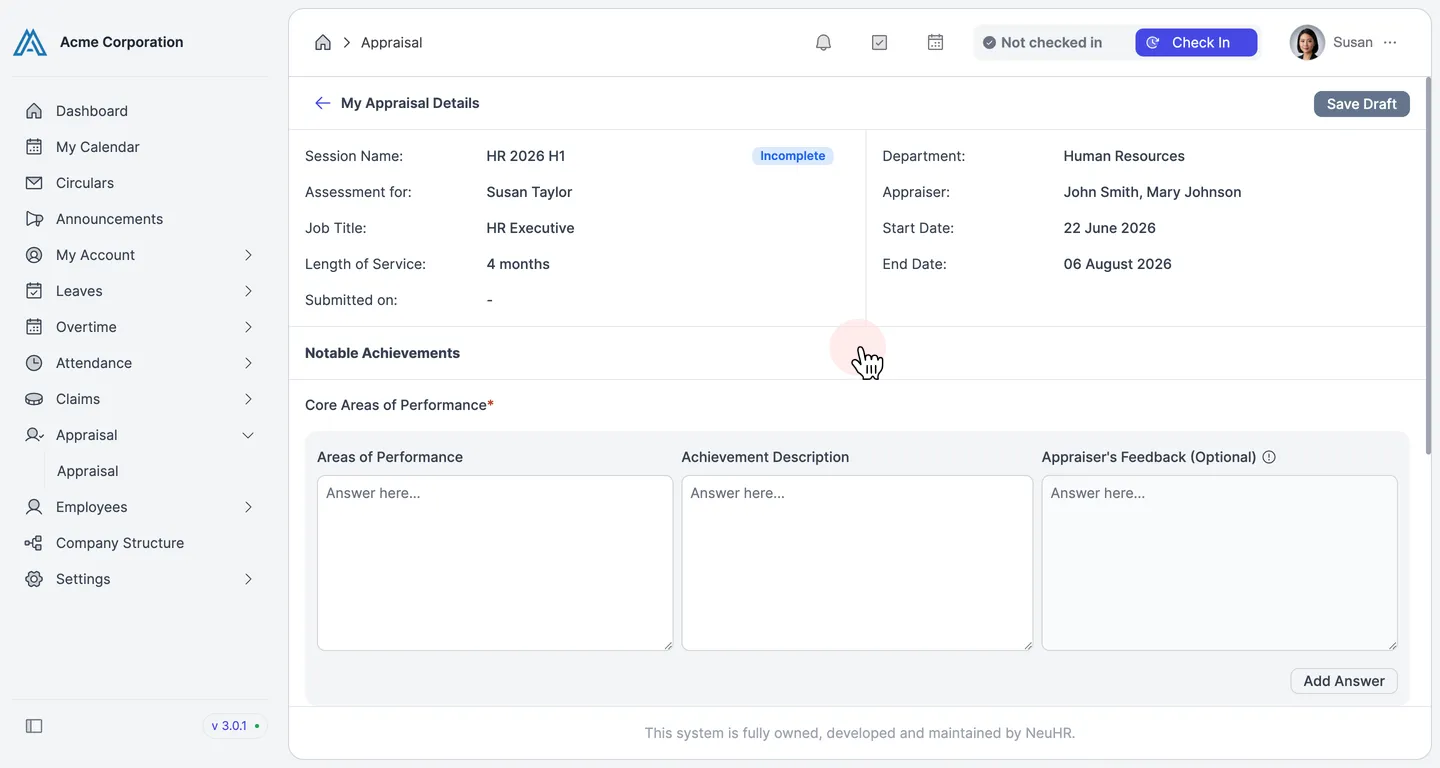
-
Fill in Notable Achievements
Section titled “Fill in Notable Achievements”The
Notable Achievementssection contains two sub-sections:- Core Areas of Performance (required): Enter your key performance areas and what you achieved in each.
- Other Areas of Performance (required): Enter any additional performance areas not covered above.
For each sub-section, fill in the columns:
- Areas of Performance: Describe the performance area you are addressing.
- Achievement Description: Describe what you accomplished in that area.
- Appraiser’s Feedback (Optional): This column is filled in by your appraiser.
Click
Add Answerto add additional rows if needed.When done, click
Next: Performance Assessmentsto proceed.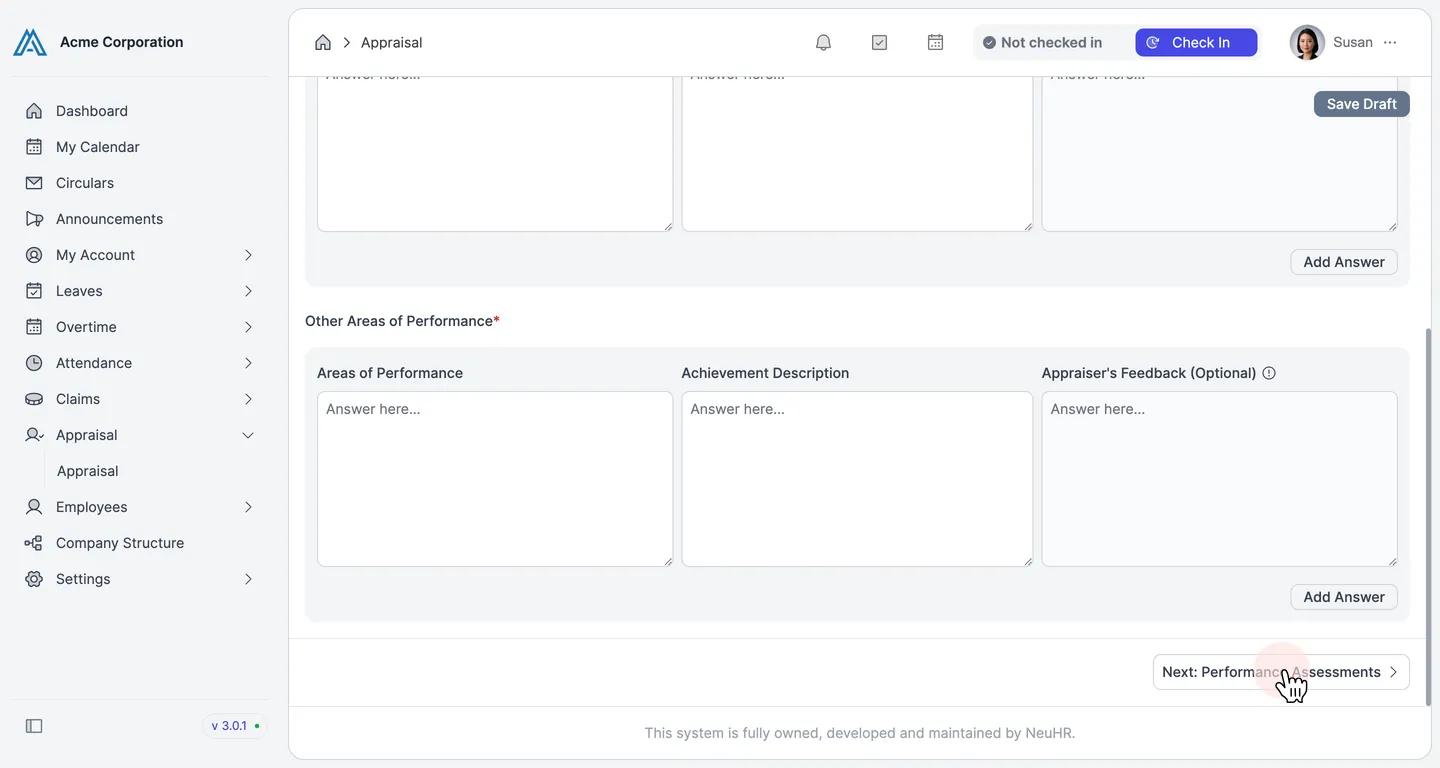
-
Fill in Performance Assessments
Section titled “Fill in Performance Assessments”The
Performance Assessmentssection displays a list of competencies such as Professional Knowledge and Skills, Innovation and Creative Thinking, Ownership and Accountability, Interpersonal Skills and Teamwork, Adaptability, Productivity, and Leadership.For each competency, select your self-assessed proficiency level by clicking the corresponding radio button:
Basic,Intermediate,Proficient,Advanced, orExpert.When you select a level, an
Add Remarkbutton appears — click it to add an optional comment for that competency.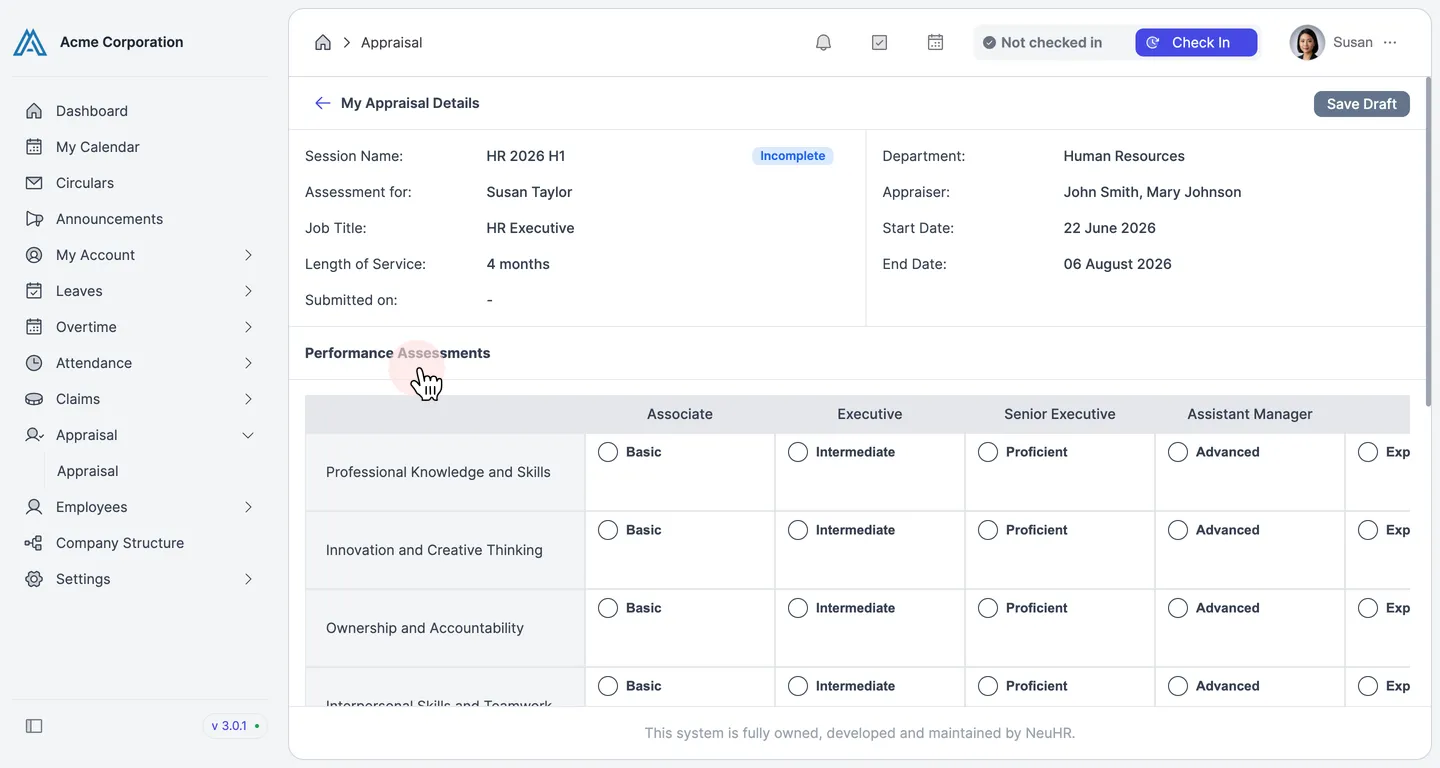
-
Add Remarks and Proceed to Goal Setting
Section titled “Add Remarks and Proceed to Goal Setting”Optionally, enter any overall comments in the
Remarks (Optional)text area at the bottom of the Performance Assessments section.Click
Next: Goal Settingto proceed to the final section.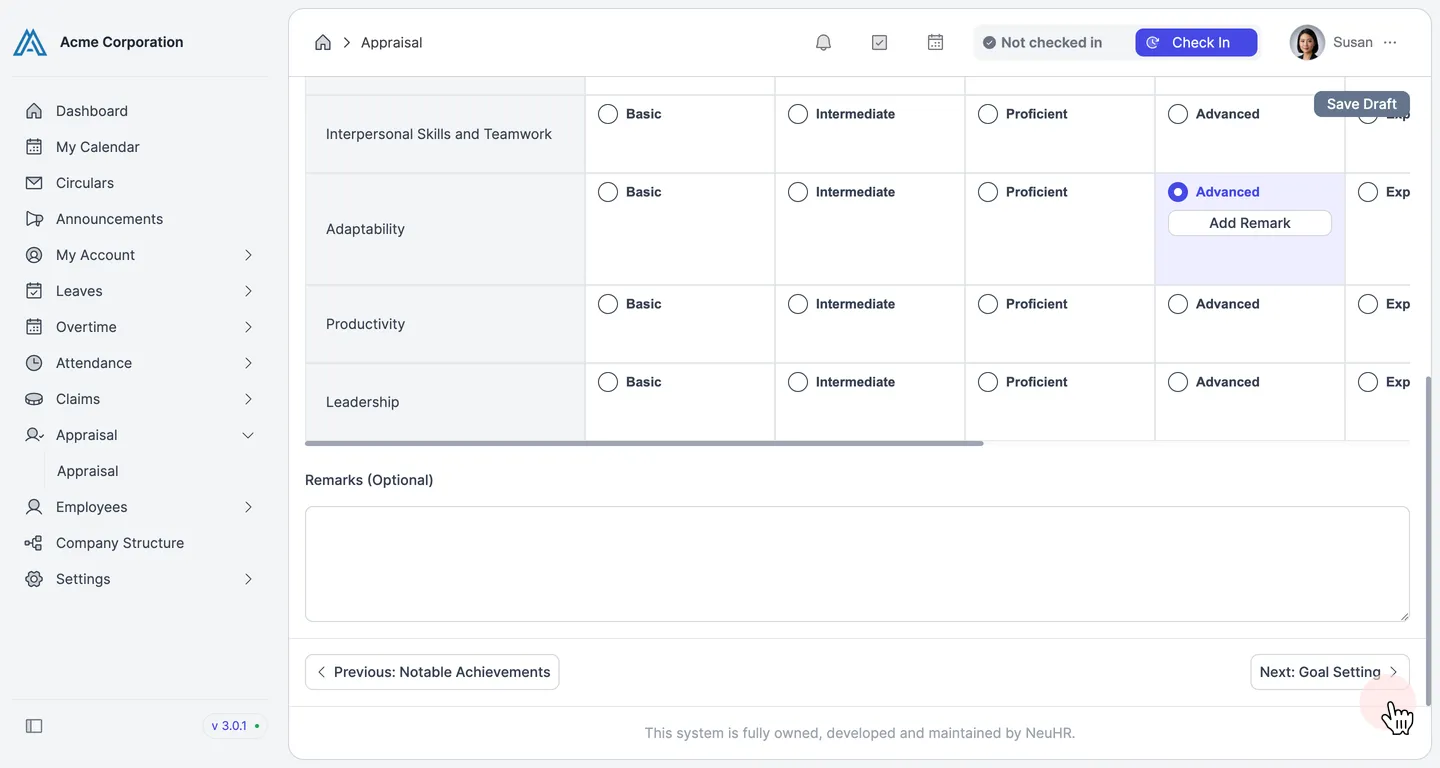
-
Fill in Goal Setting and Submit
Section titled “Fill in Goal Setting and Submit”The
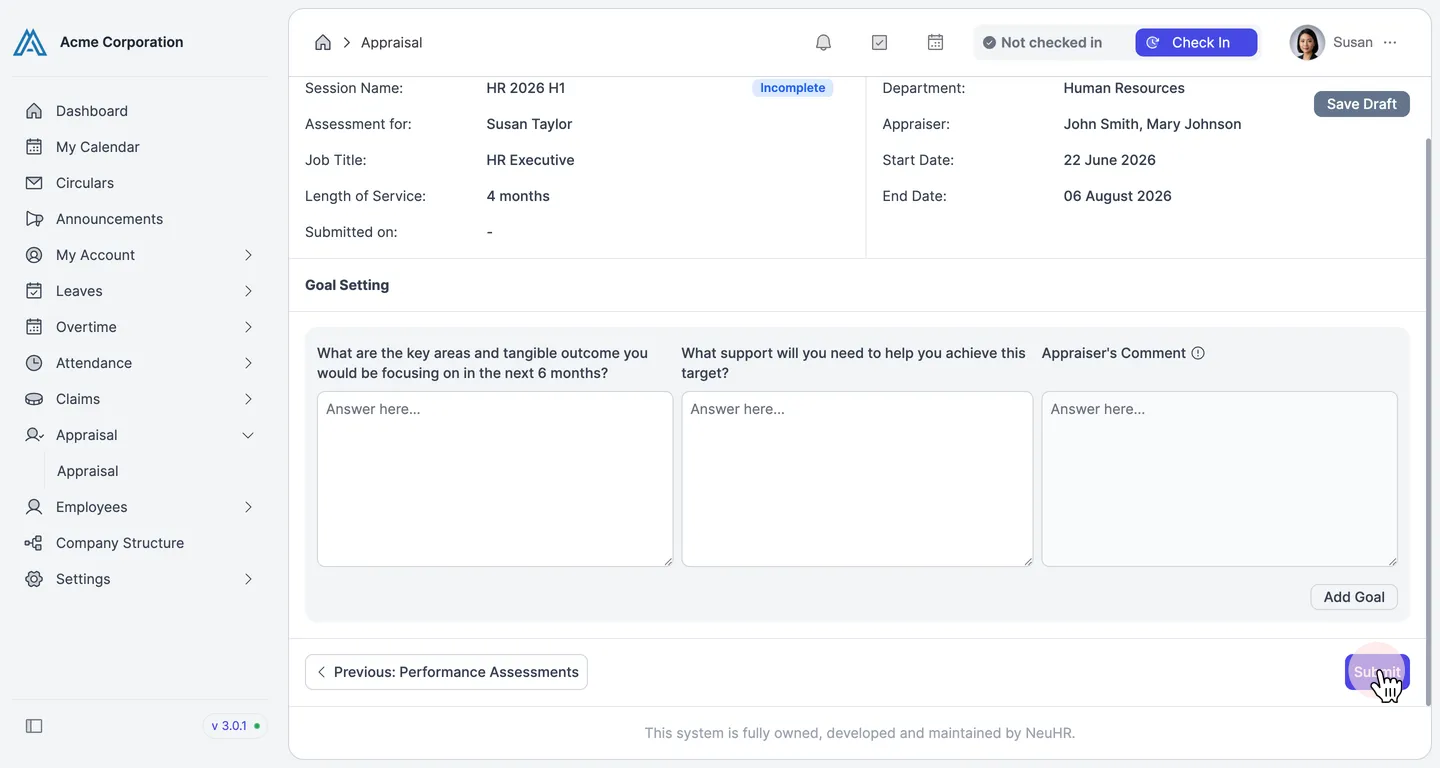
Goal Settingsection asks you to set goals for the next period. For each goal, fill in:- What are the key areas and tangible outcome you would be focusing on in the next 6 months?: Describe your goal and the expected outcome.
- What support will you need to help you achieve this target?: Describe any resources or support required.
- Appraiser’s Comment: This column is filled in by your appraiser.
Click
Add Goalto add additional goals.Once all sections are complete, click
Submitto submit your appraisal.