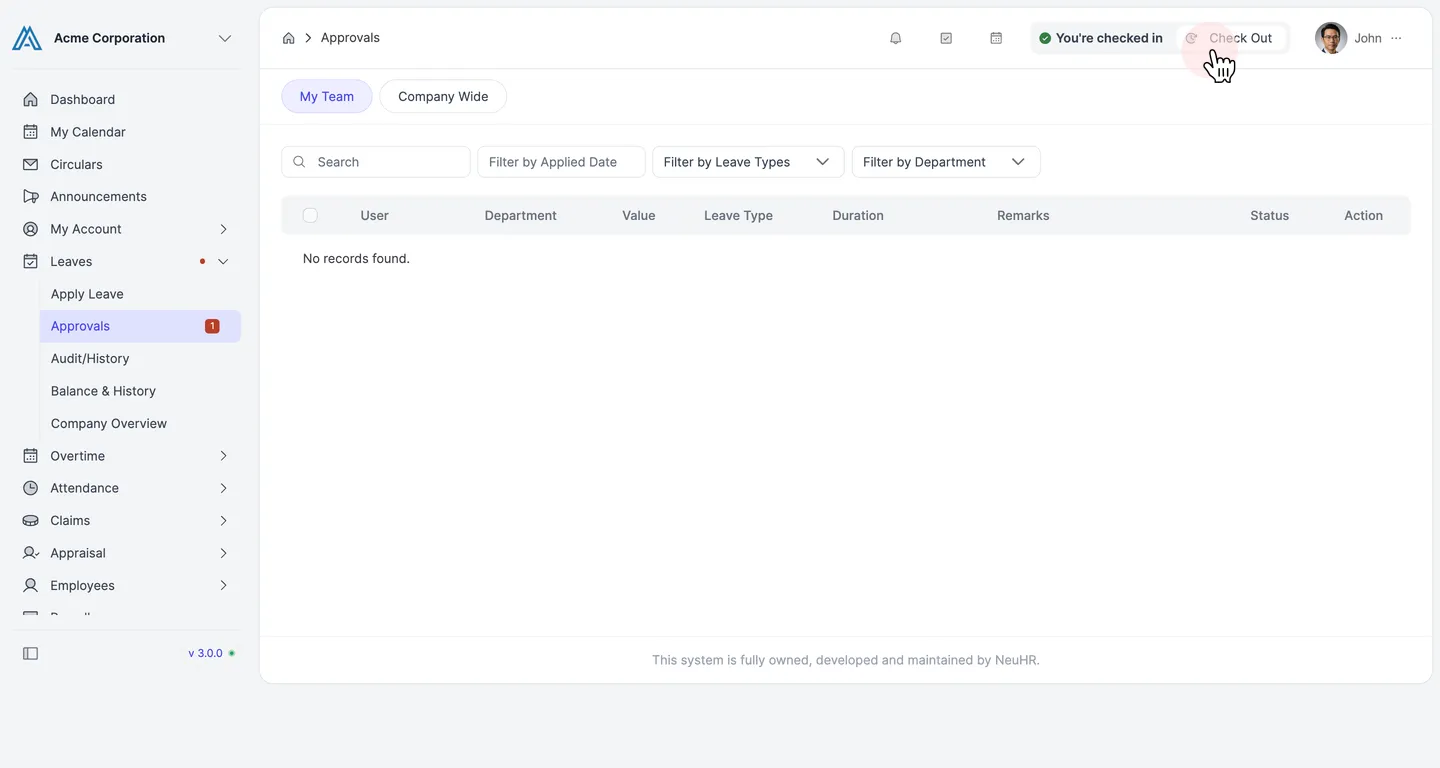
How to Approve or Reject a Leave Application
As a manager or admin, you can review and act on leave applications submitted by your team members from the Approvals page.
-
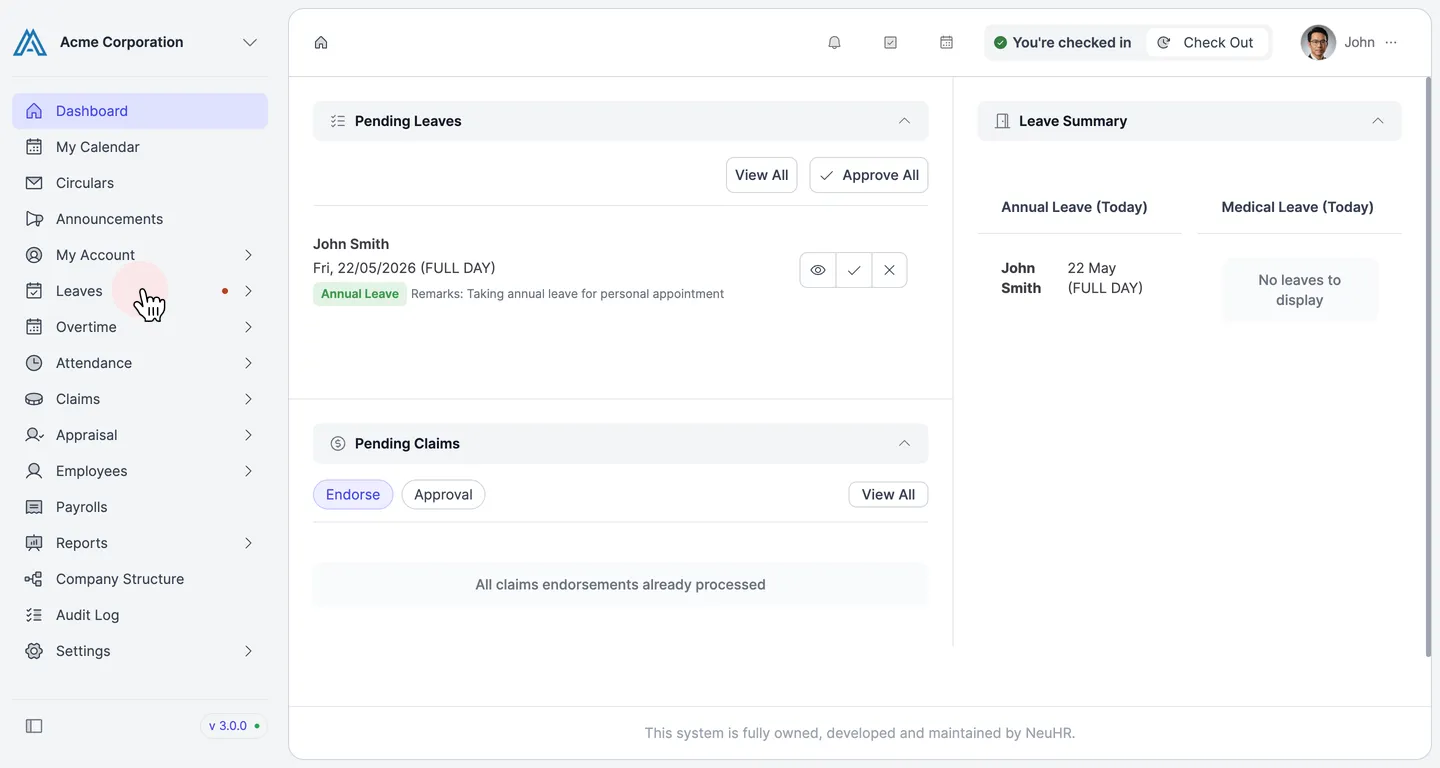
Go to Leaves
From the left sidebar, click Leaves to expand the menu.
-
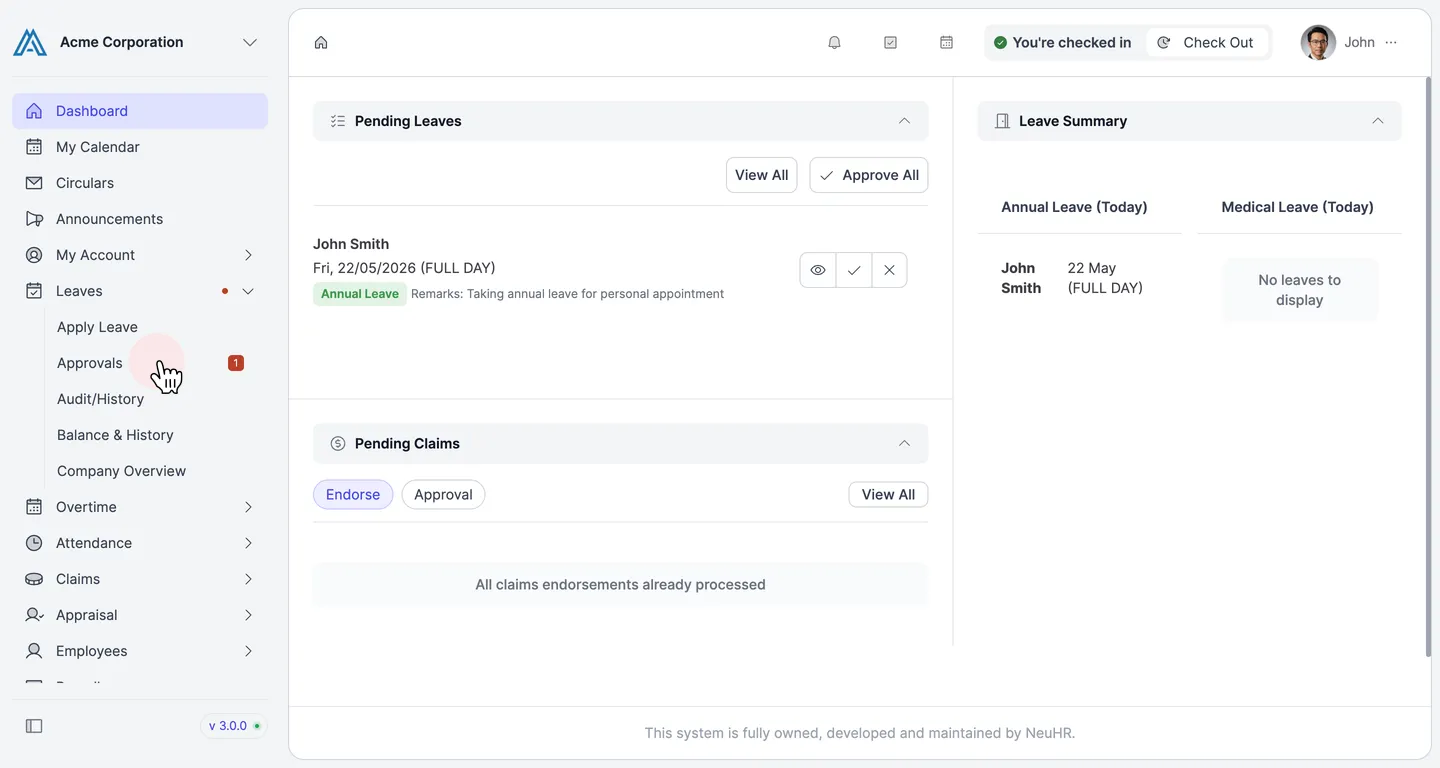
Open Approvals
In the expanded menu, click Approvals.
-
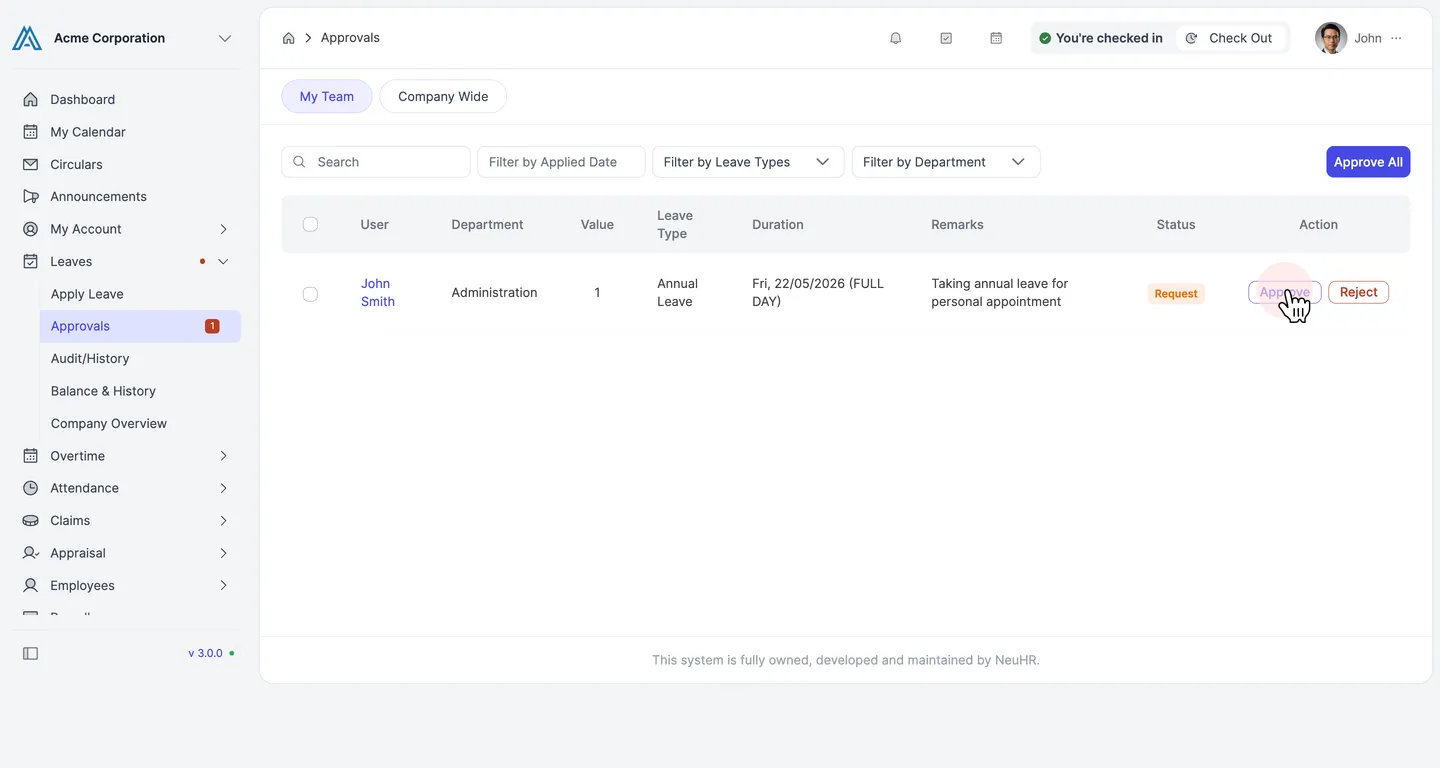
Find the leave application
The Approvals page opens on the My Team tab, listing all pending leave applications from your team members. For each application you can see the user, department, leave type, duration, remarks, and current status.
In the Action column, click Approve or Reject for the application you want to act on.
-
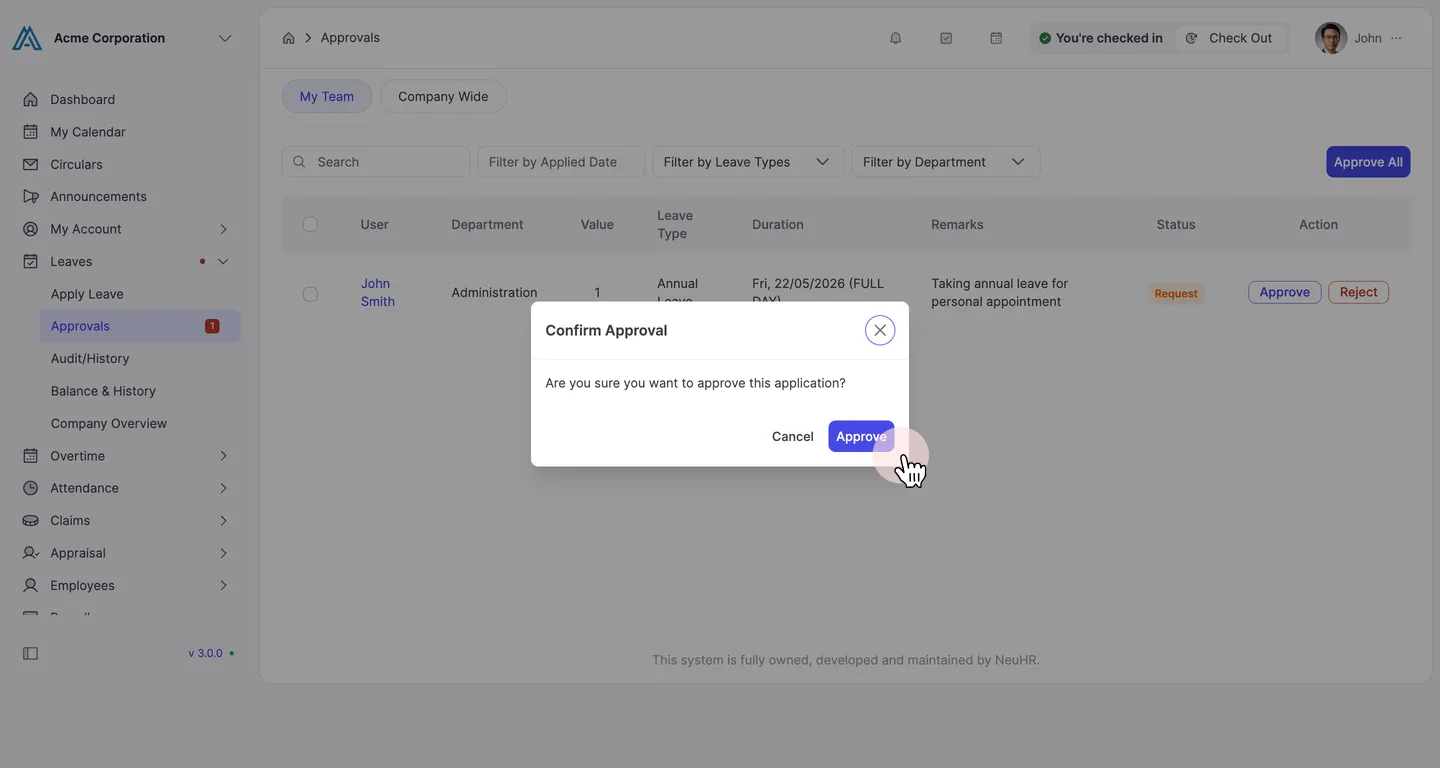
To approve: confirm the approval
A Confirm Approval dialog appears asking “Are you sure you want to approve this application?” Click Approve to confirm.
-
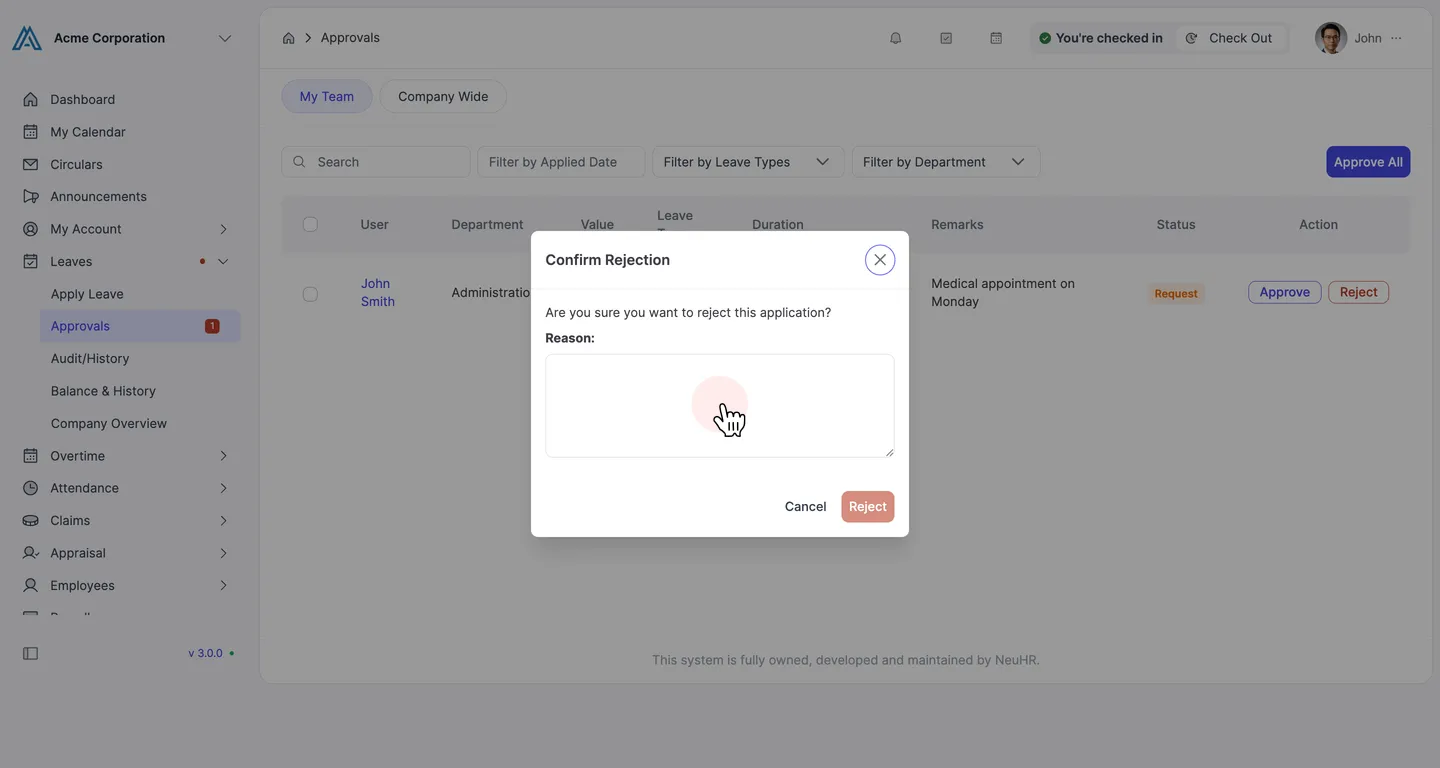
To reject: enter a reason and confirm
A Confirm Rejection dialog appears. Enter a Reason for the rejection, then click Reject to confirm.
-
Done
A success notification appears confirming the action. The leave application is removed from the pending list.