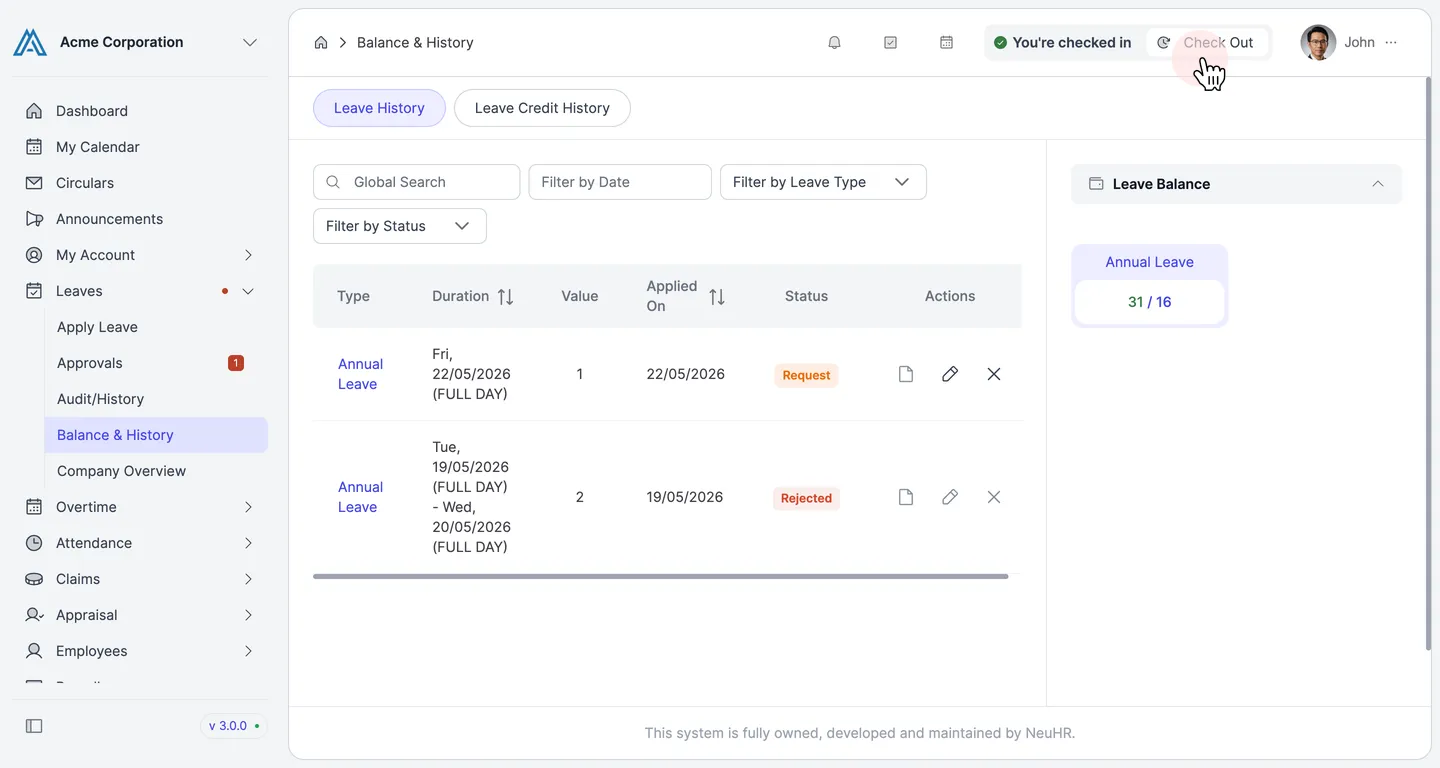
How to Update Applied Leave
This guide shows you how to update a leave application that you have already submitted in NeuHR.
-
Navigate to Leaves
Section titled “Navigate to Leaves”From the sidebar, click on
Leavesto expand the menu.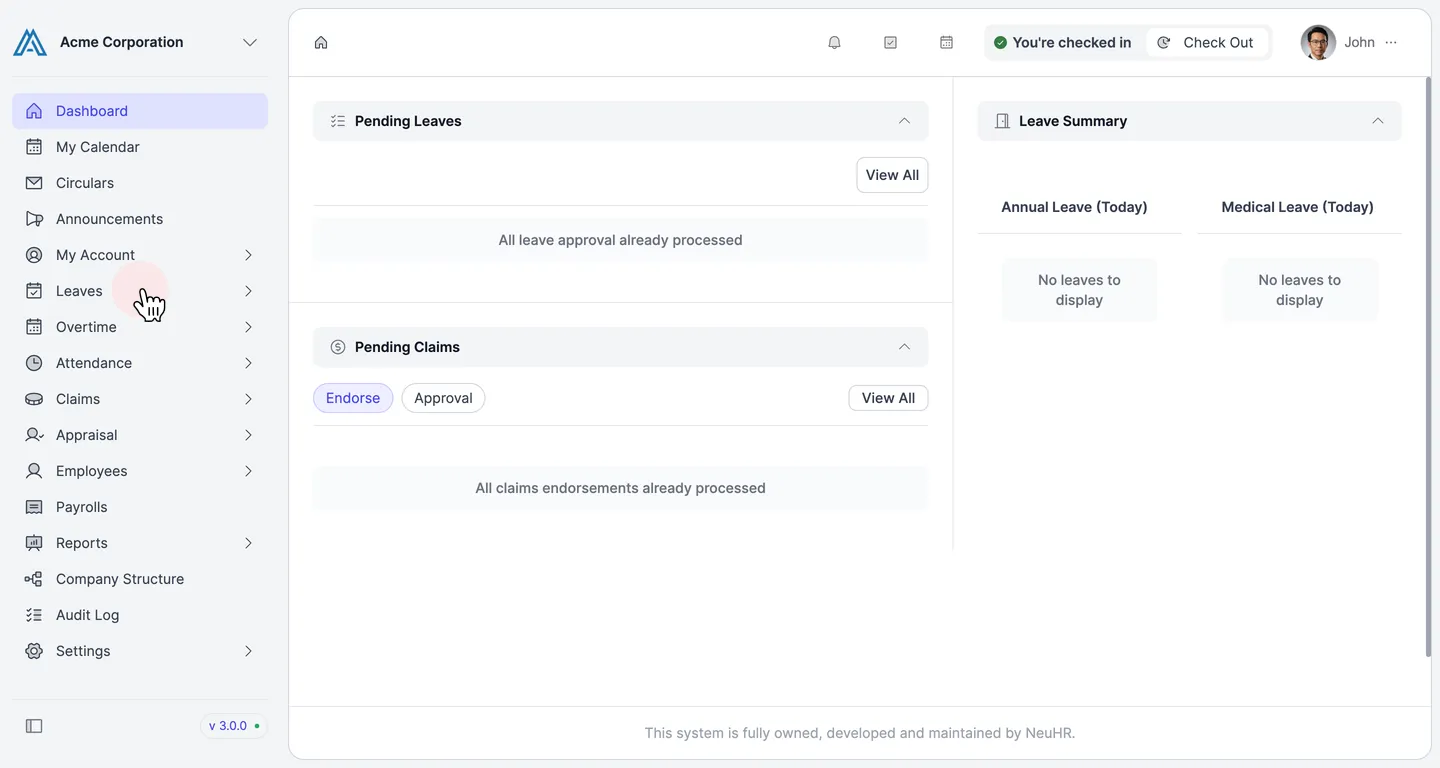
-
Open Balance & History
Section titled “Open Balance & History”Click on
Balance & Historyfrom the expanded Leaves submenu.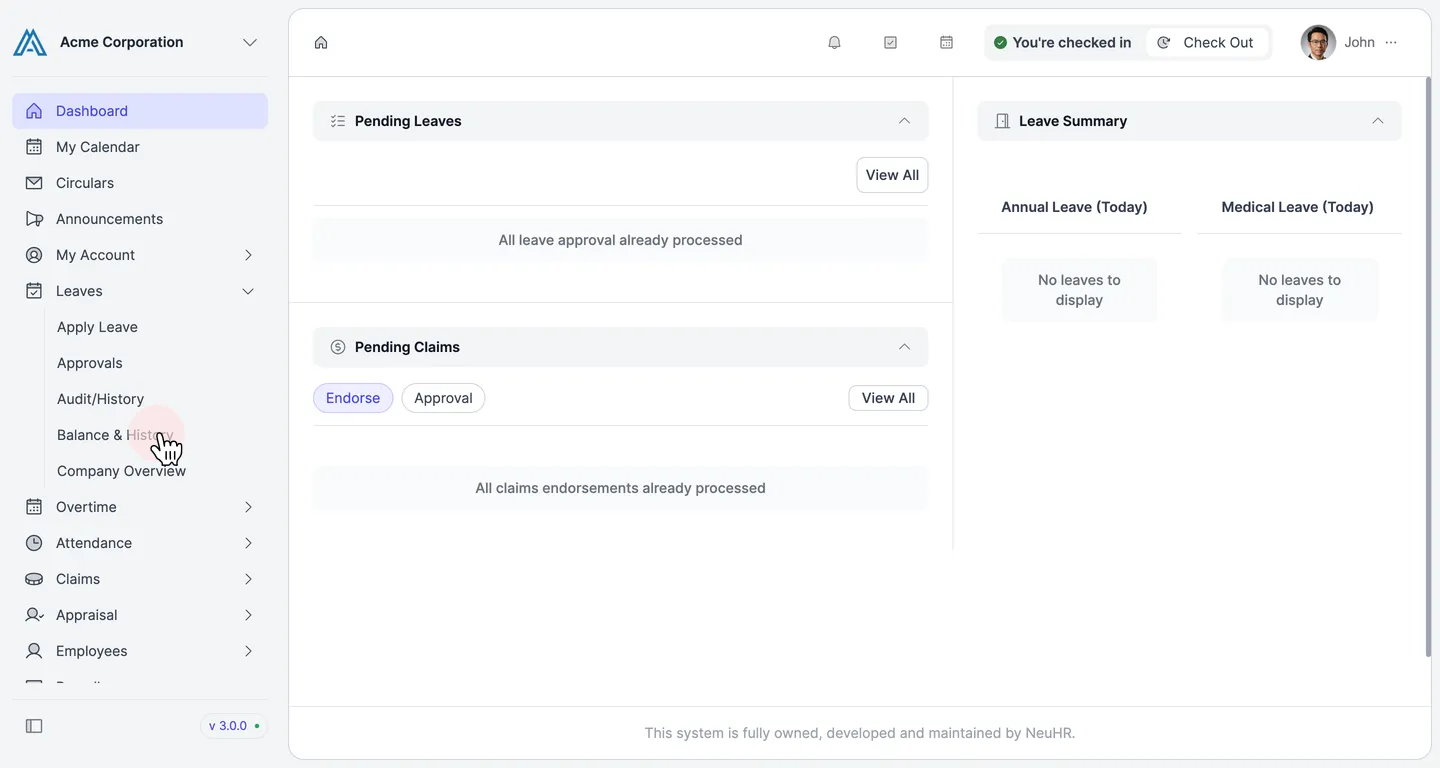
-
Find the Leave to Update
Section titled “Find the Leave to Update”On the Balance & History page, locate the leave application you want to update in the Leave History table. Click the pencil icon in the
Actionscolumn for the leave withRequeststatus.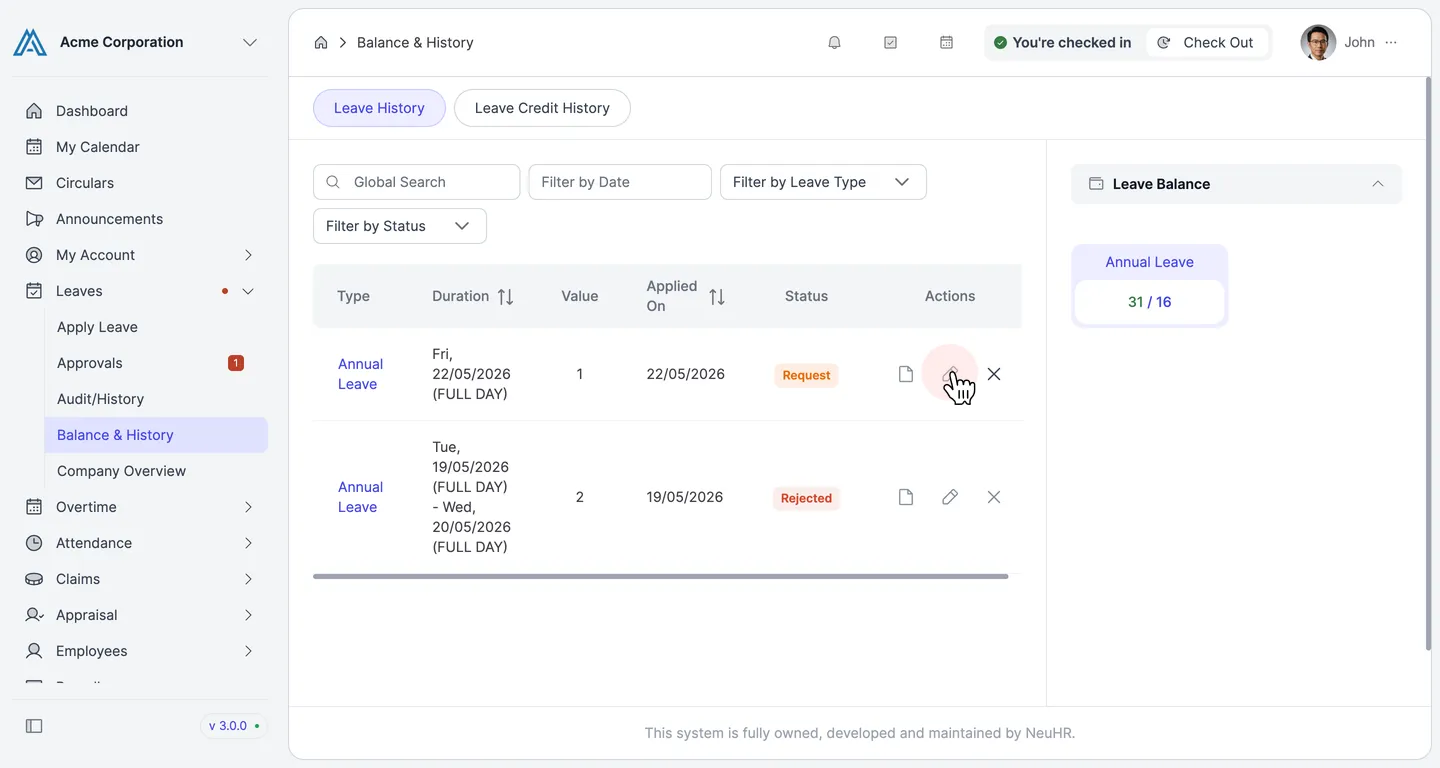
-
Review the Update Form
Section titled “Review the Update Form”The update form opens with your current leave details. You can modify the
Start Date,End Date,Remarks, or upload a supporting document.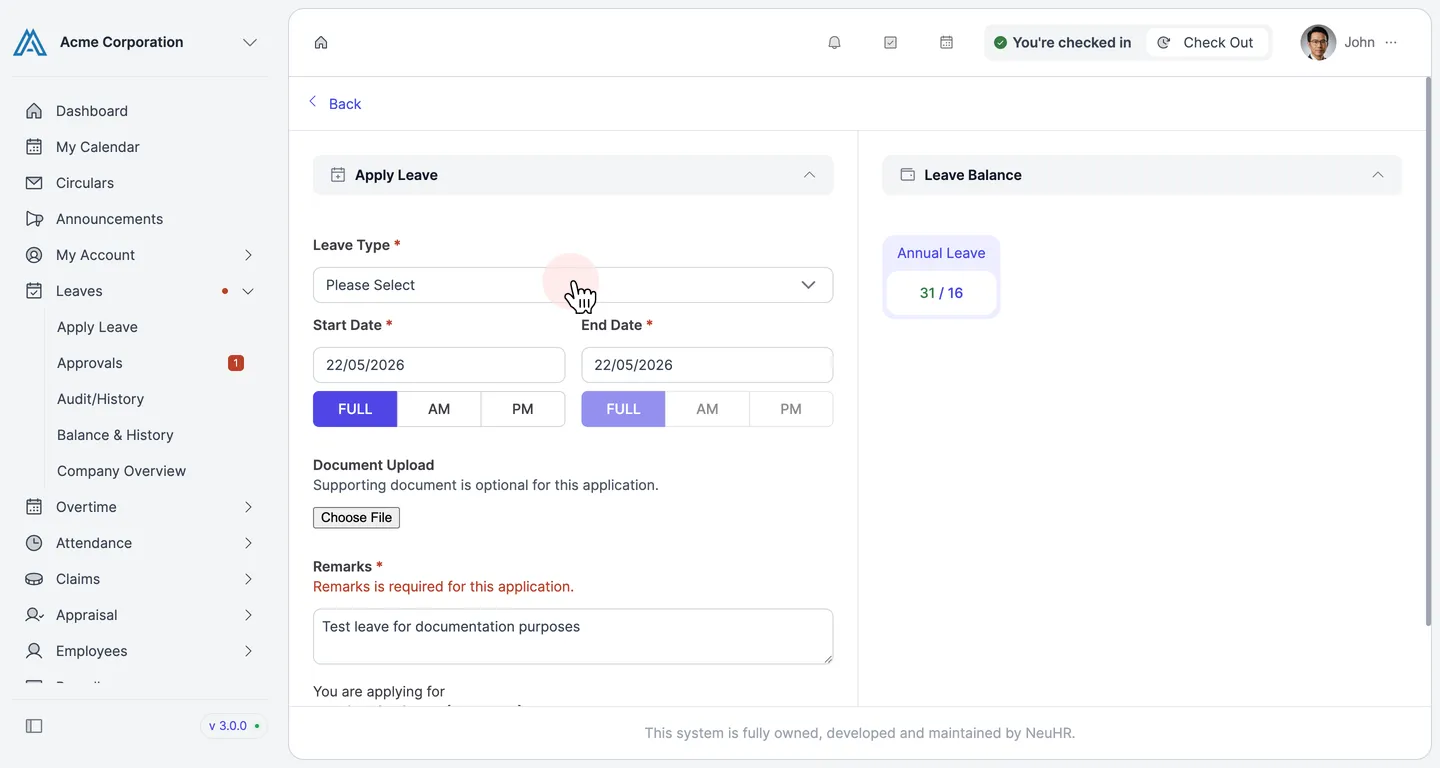
-
Make Changes and Click Update
Section titled “Make Changes and Click Update”Update the fields you want to change, then click the
Updatebutton to save your changes.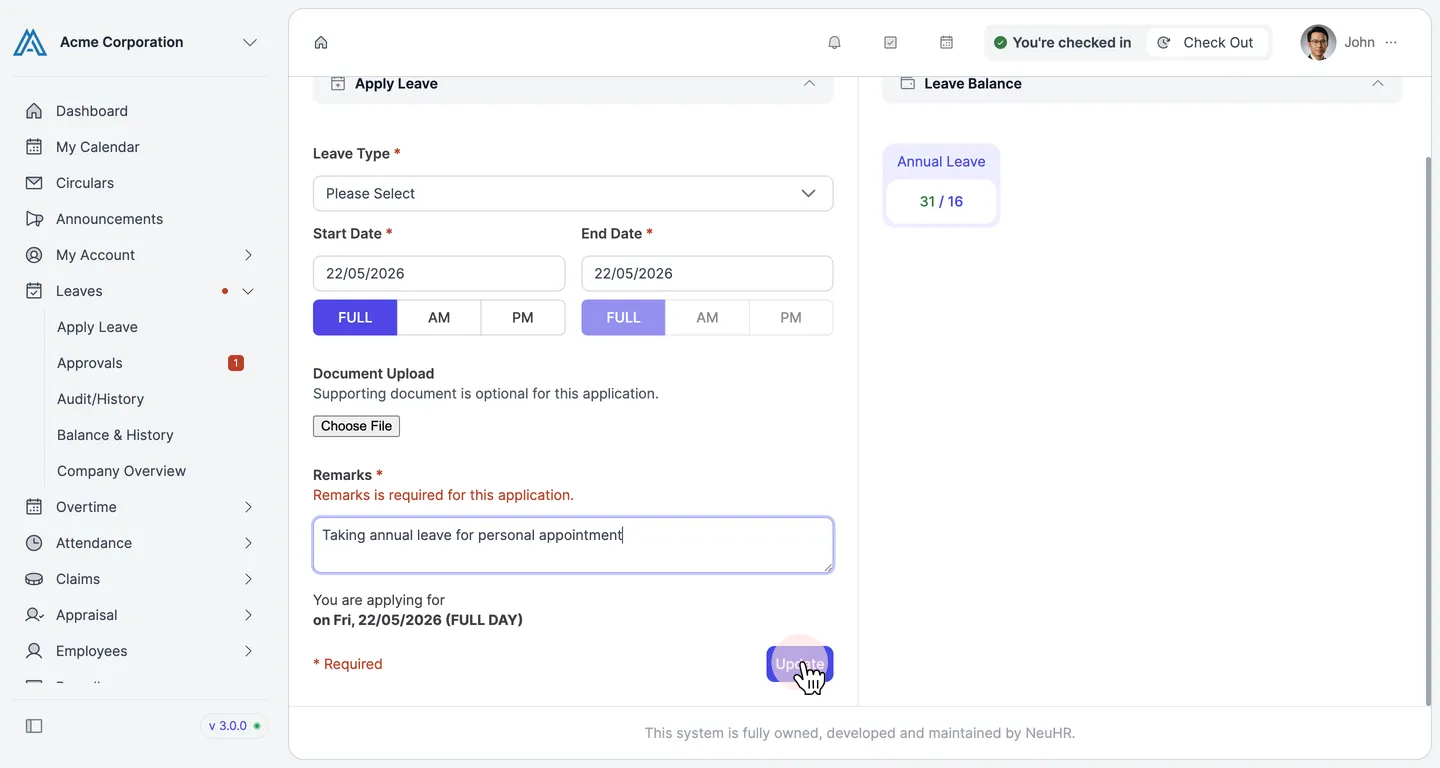
-
Update Confirmed
Section titled “Update Confirmed”A success notification confirms your leave has been updated. You’ll be returned to the Balance & History page.