

How to Apply for Leave
This guide shows you how to apply for leave in the NeuHR system.
-
Navigate to Apply Leave
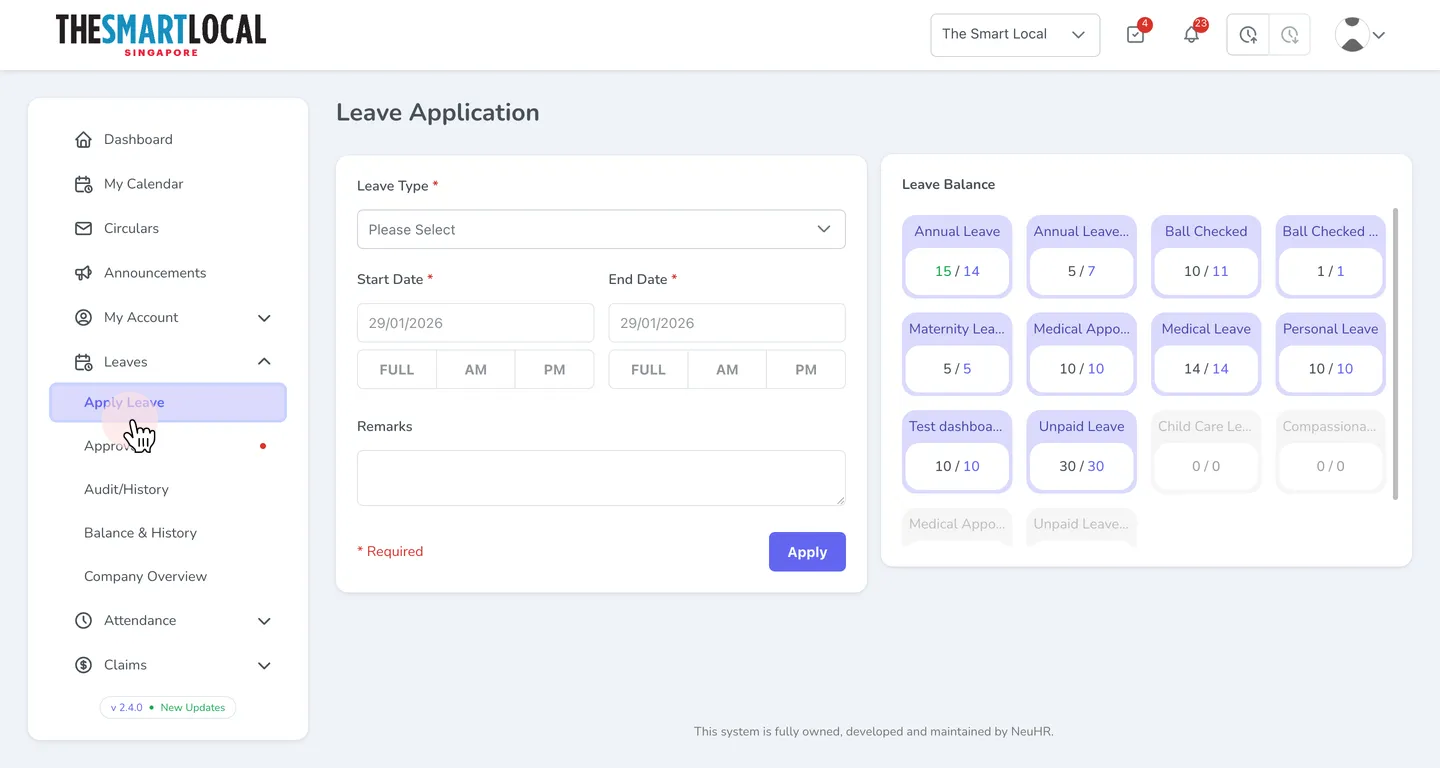
Section titled “Navigate to Apply Leave”From the sidebar, click on Leaves to expand the menu, then click on Apply Leave.
-
View the Leave Application Form
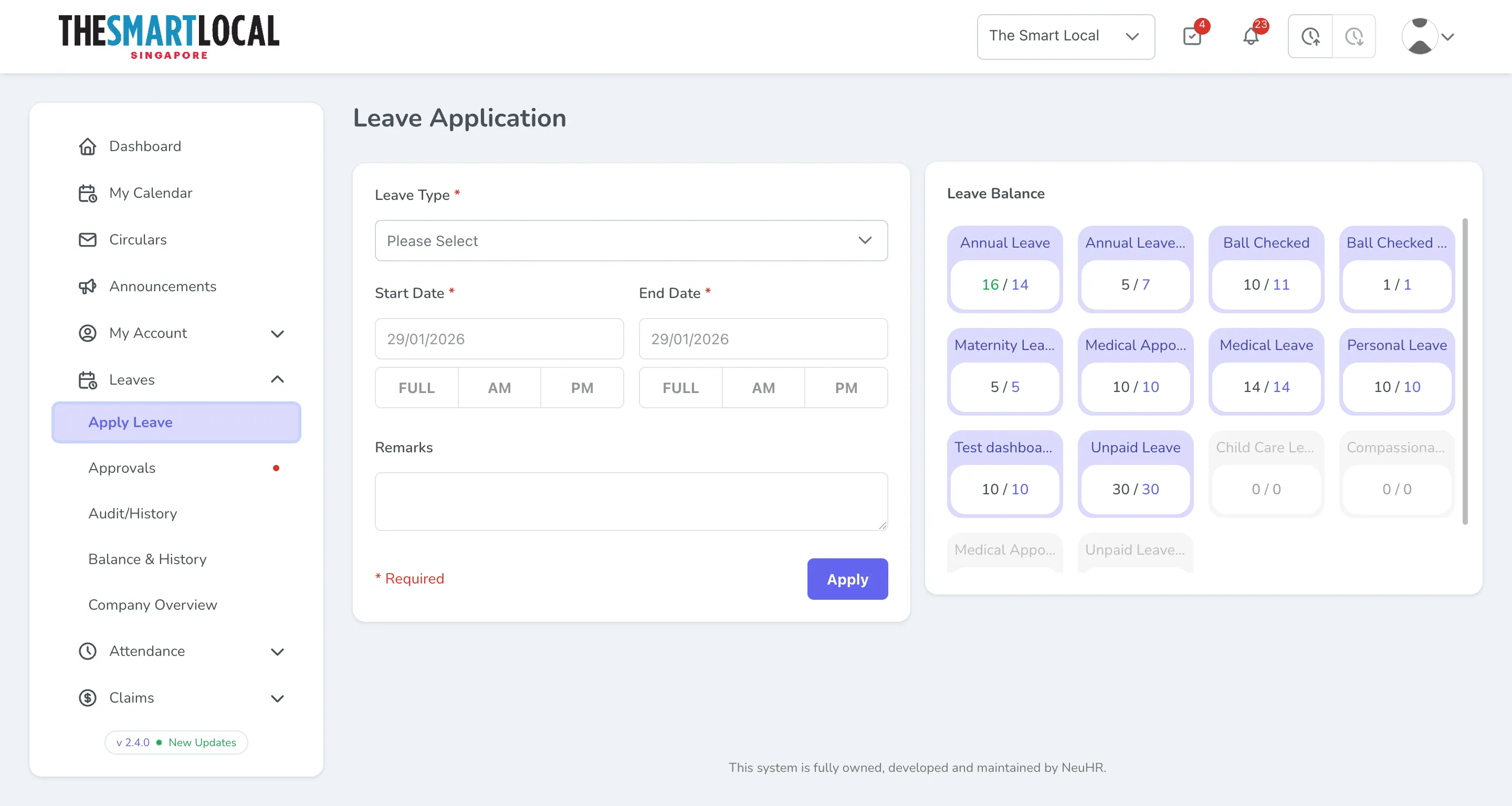
Section titled “View the Leave Application Form”You’ll see the Leave Application page with your current leave balance displayed on the right side.
-
Select Leave Type
Section titled “Select Leave Type”Click on the Leave Type dropdown (it shows “Please Select” by default) to see available leave types.
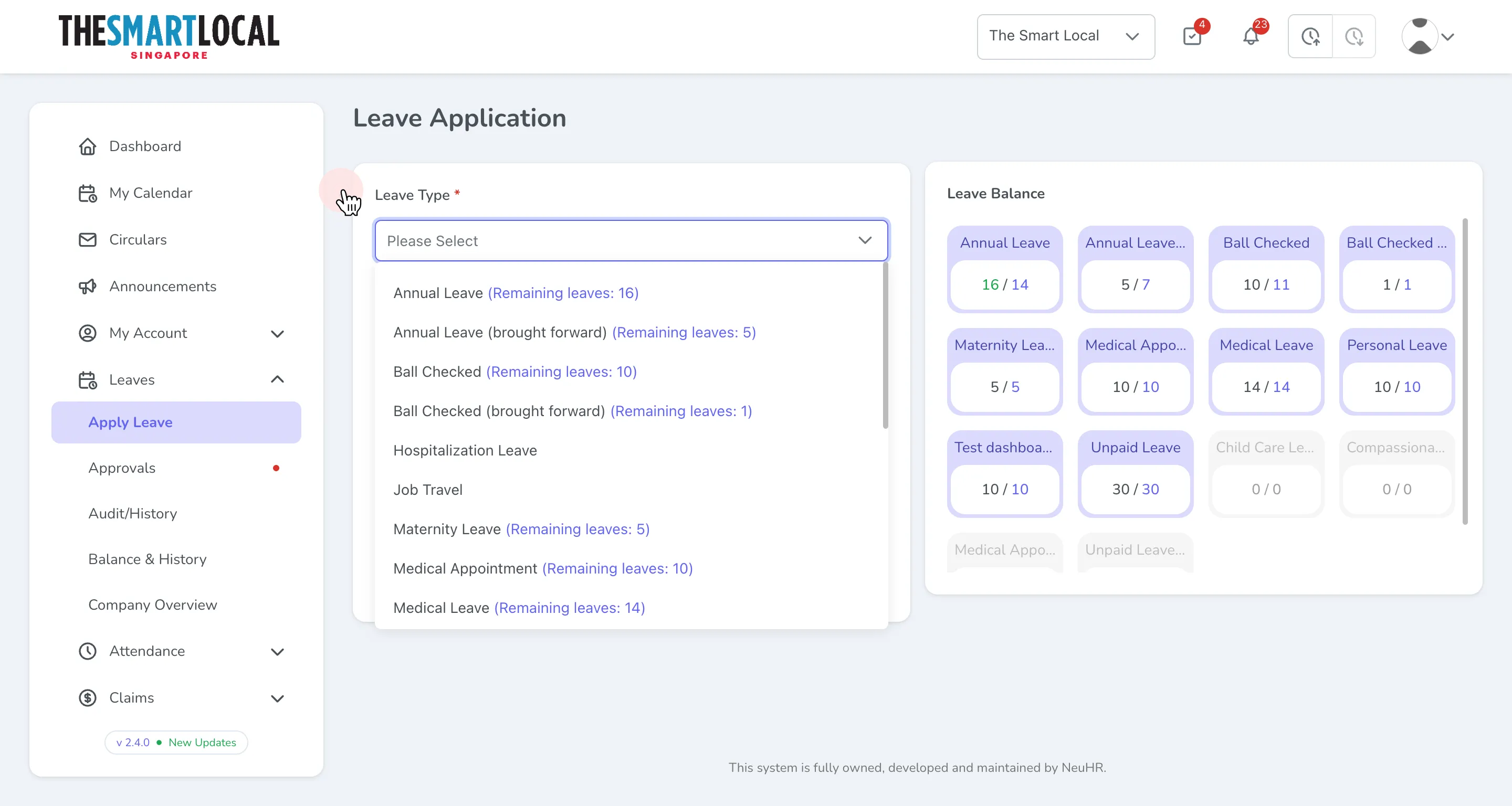
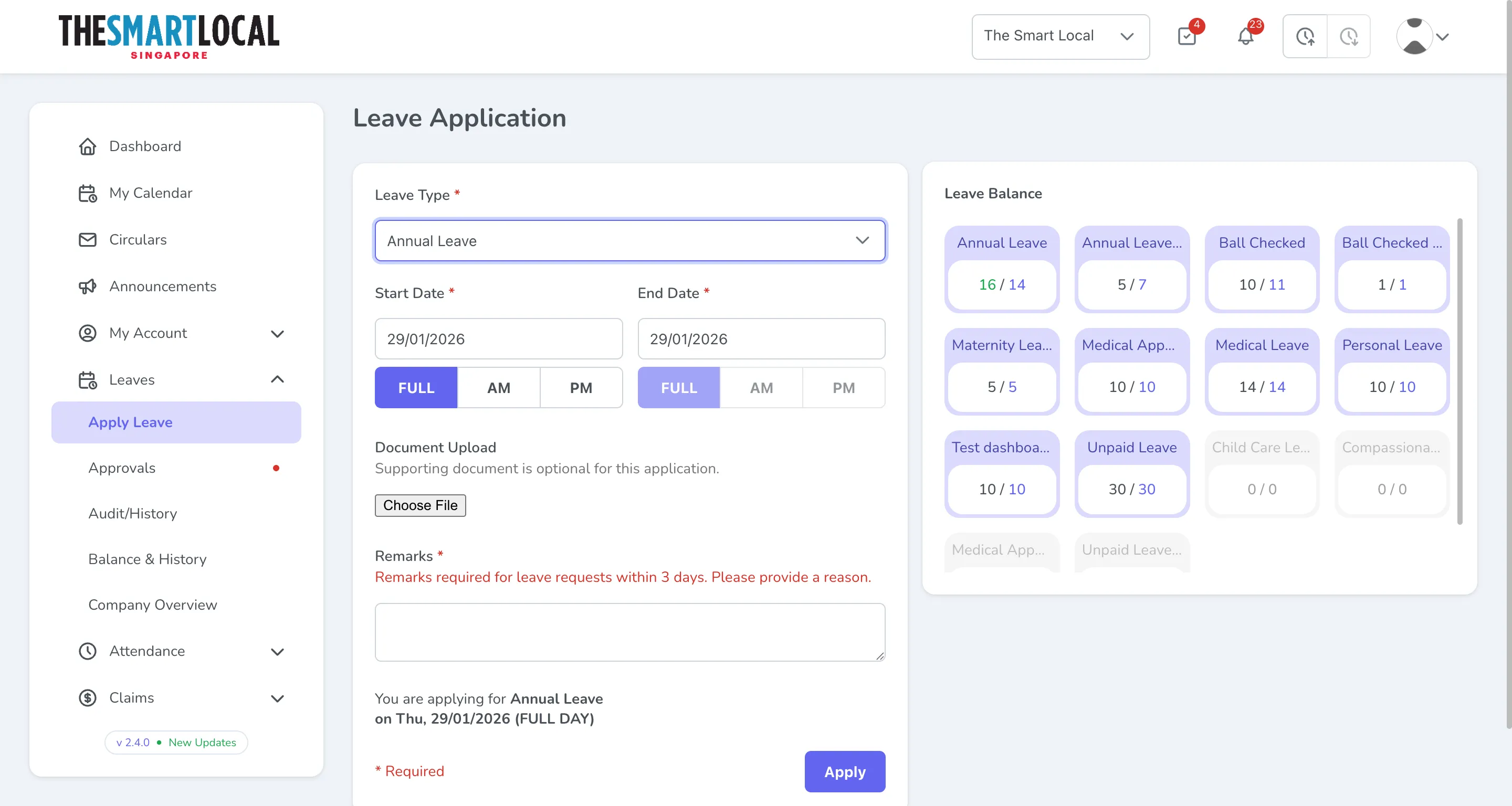
Select your desired leave type from the list. Each option shows your remaining balance.
-
Select Start Date
Section titled “Select Start Date”Click on the Start Date field to open the calendar picker.
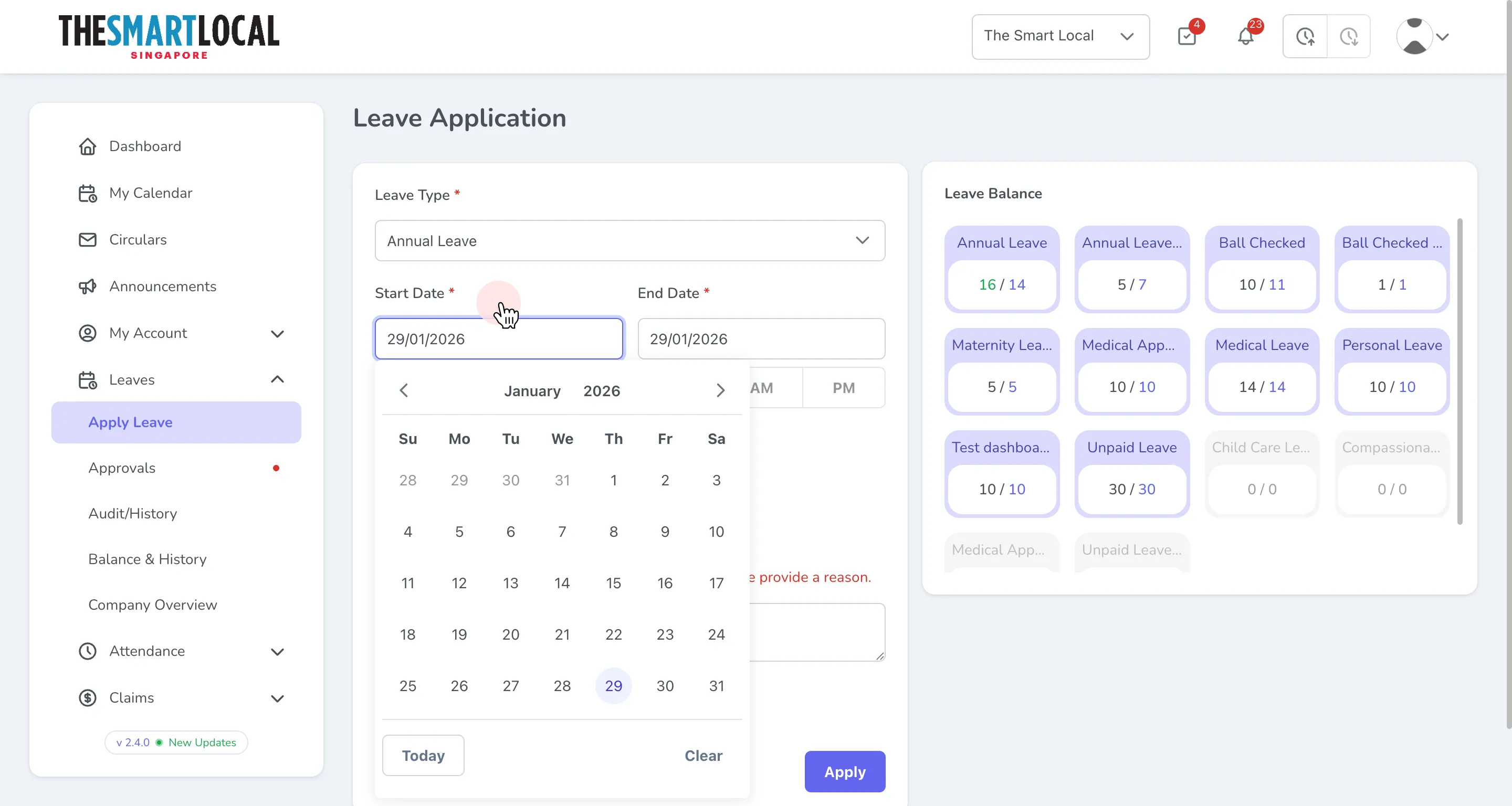
Select your desired date from the calendar. You can also choose the time option:
- FULL - Full day leave
- AM - Morning only (half day)
- PM - Afternoon only (half day)
The End Date will automatically be set to the same date for single-day leave. For multi-day leave, you can select a different end date.
-
Enter Remarks
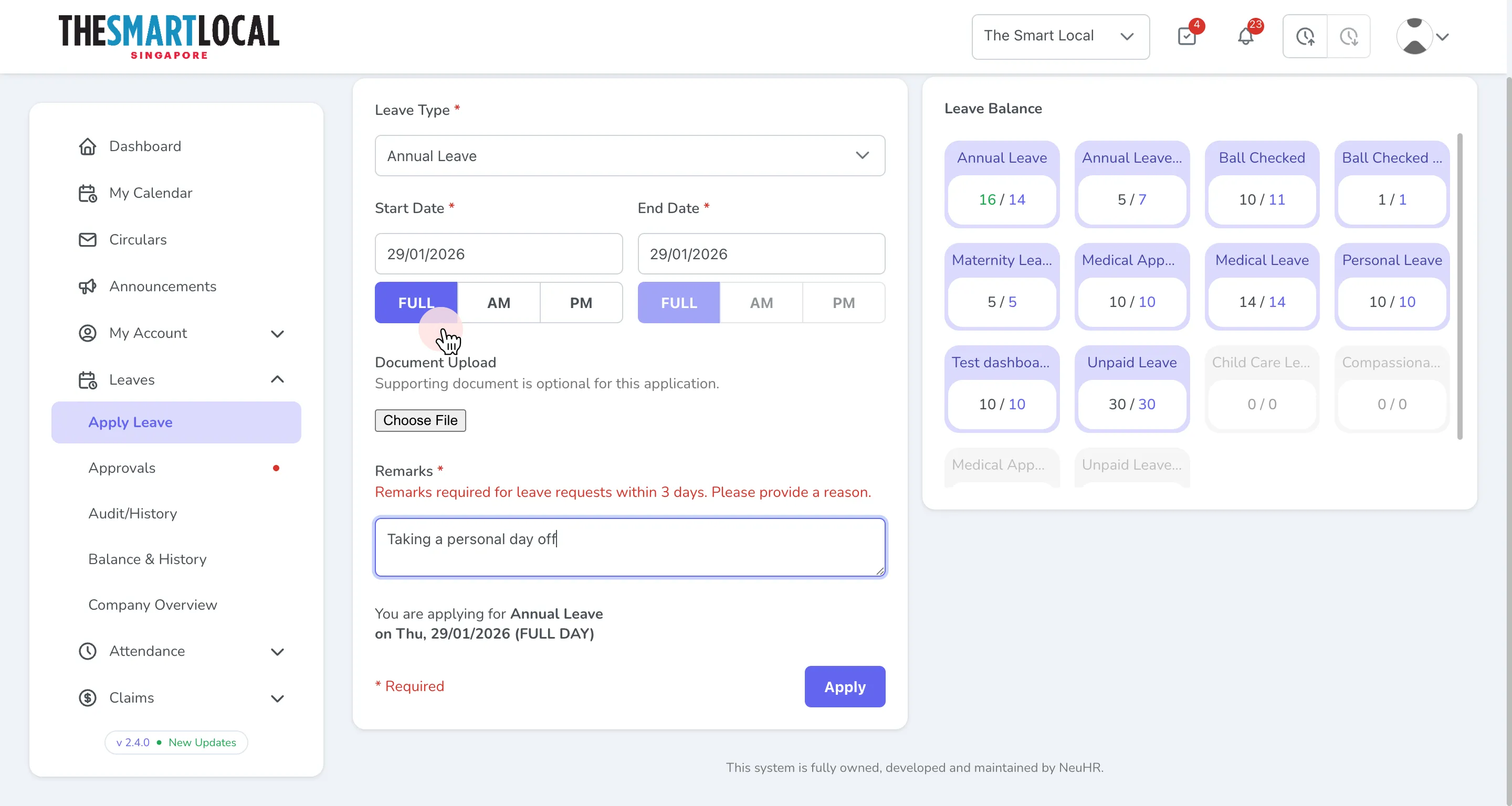
Section titled “Enter Remarks”If your leave request is within 3 days, remarks are required. Enter a reason for your leave in the Remarks field.
-
Submit the Application
Section titled “Submit the Application”Review your leave application details shown at the bottom of the form. When ready, click the Apply button to submit your leave application.
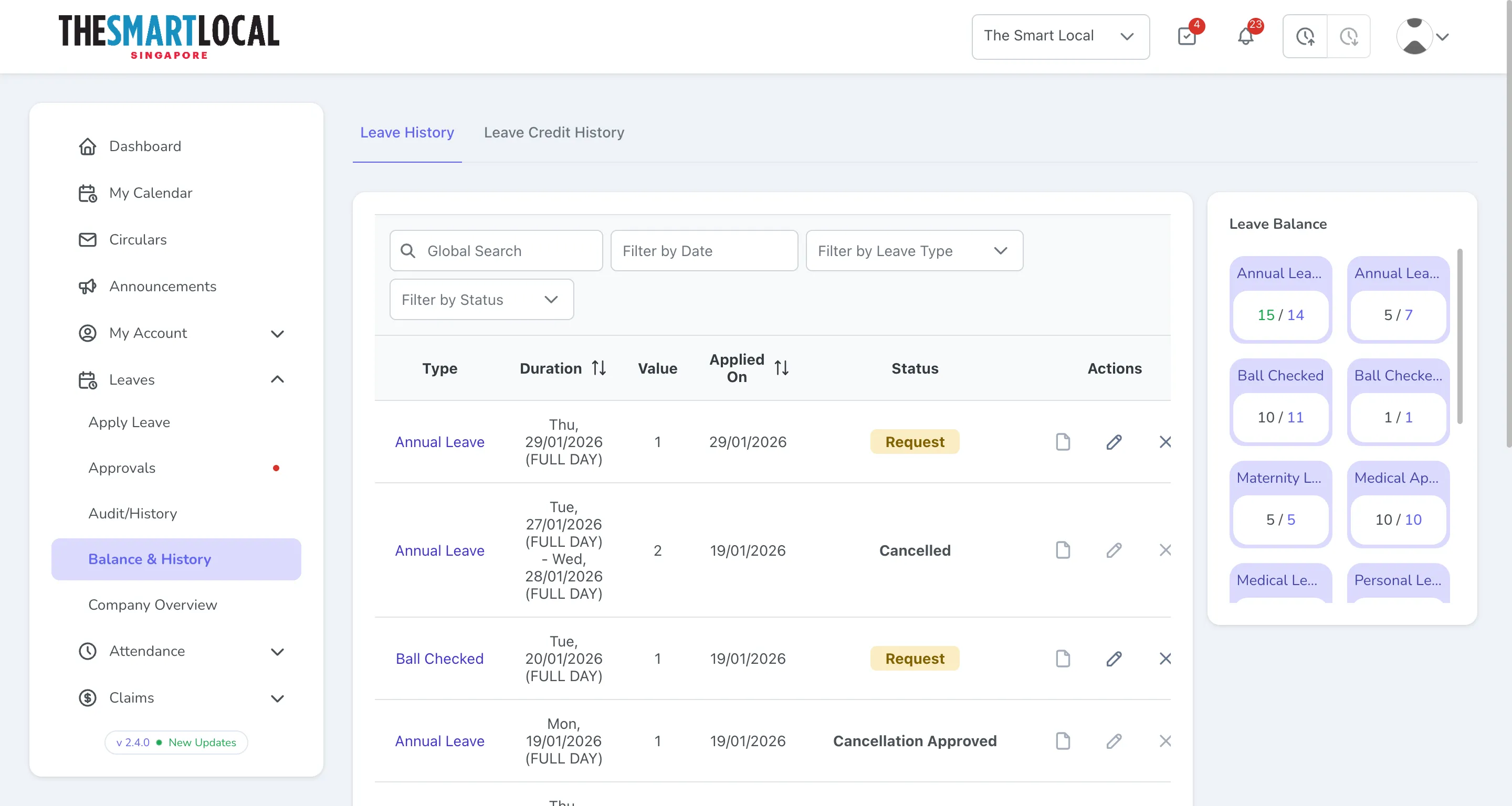
Your leave application has been submitted and will be sent to your approver for review.
Additional Options
Section titled “Additional Options”- Document Upload: You can optionally attach supporting documents for your leave application by clicking the Choose File button.
- Time Options: Use the FULL/AM/PM buttons to specify whether you need a full day or half day leave.
- Check your leave balance on the right side before applying to ensure you have sufficient leave.
- For leaves within 3 days, make sure to provide a clear reason in the remarks field.
- You can view your submitted applications in the Audit/History section under the Leaves menu.