

How to Check My Claims Application History
This guide will show you how to check your claims application history in NeuHR. You can view all your past claims, filter them by various criteria, and access detailed information about each claim including receipts and approval history.
Prerequisites
Section titled “Prerequisites”- You must have an active employee account
- You must have submitted at least one claim in the past
Step 1: Navigate to My Claims
Section titled “Step 1: Navigate to My Claims”From the main dashboard, click on Claims in the left sidebar, then click on My Claims from the submenu.
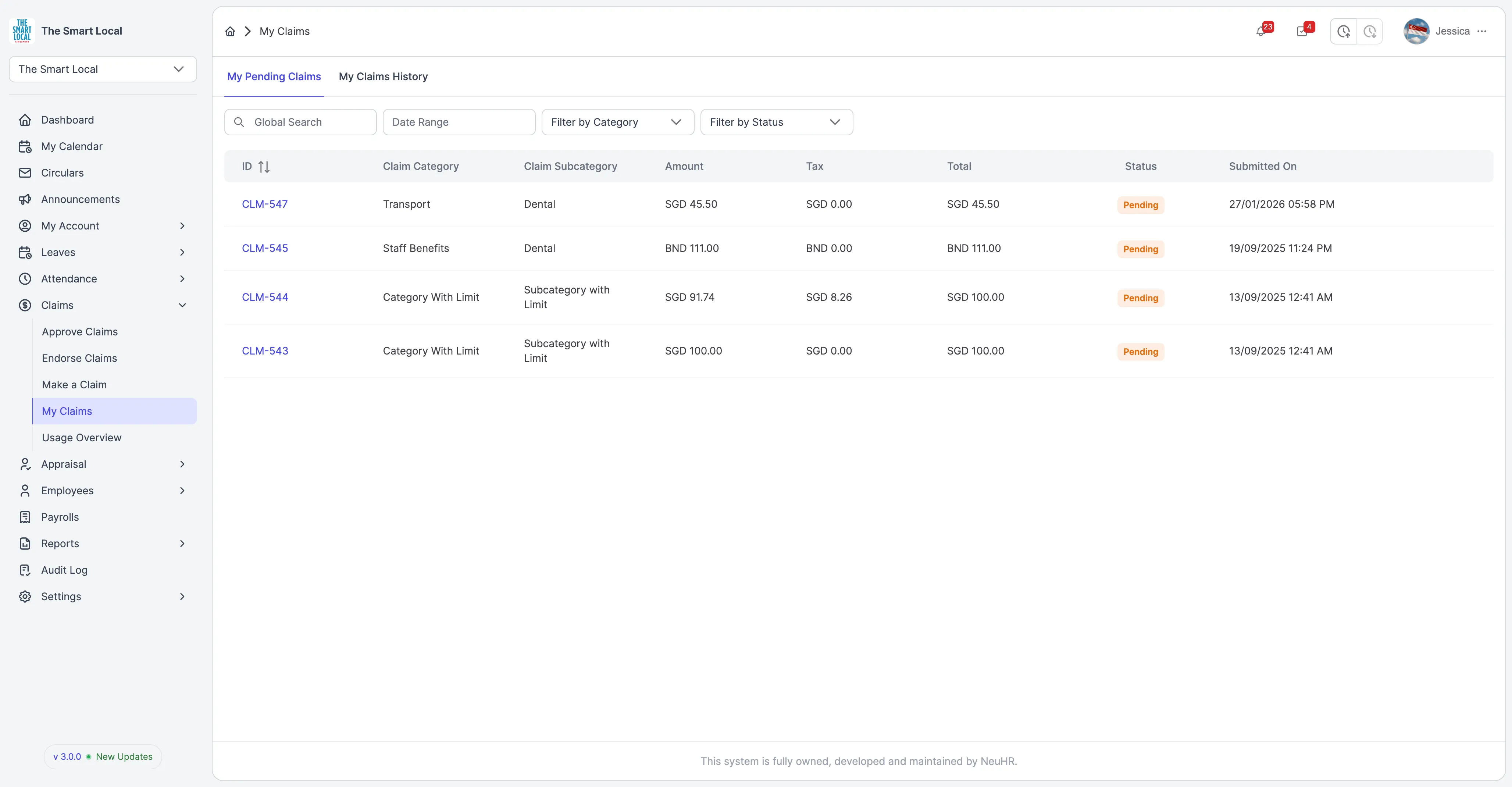
You’ll see the My Claims page with two tabs: My Pending Claims and My Claims History.
Step 2: Select My Claims History Tab
Section titled “Step 2: Select My Claims History Tab”On the My Claims page, click on My Claims History tab to view all your past claims.
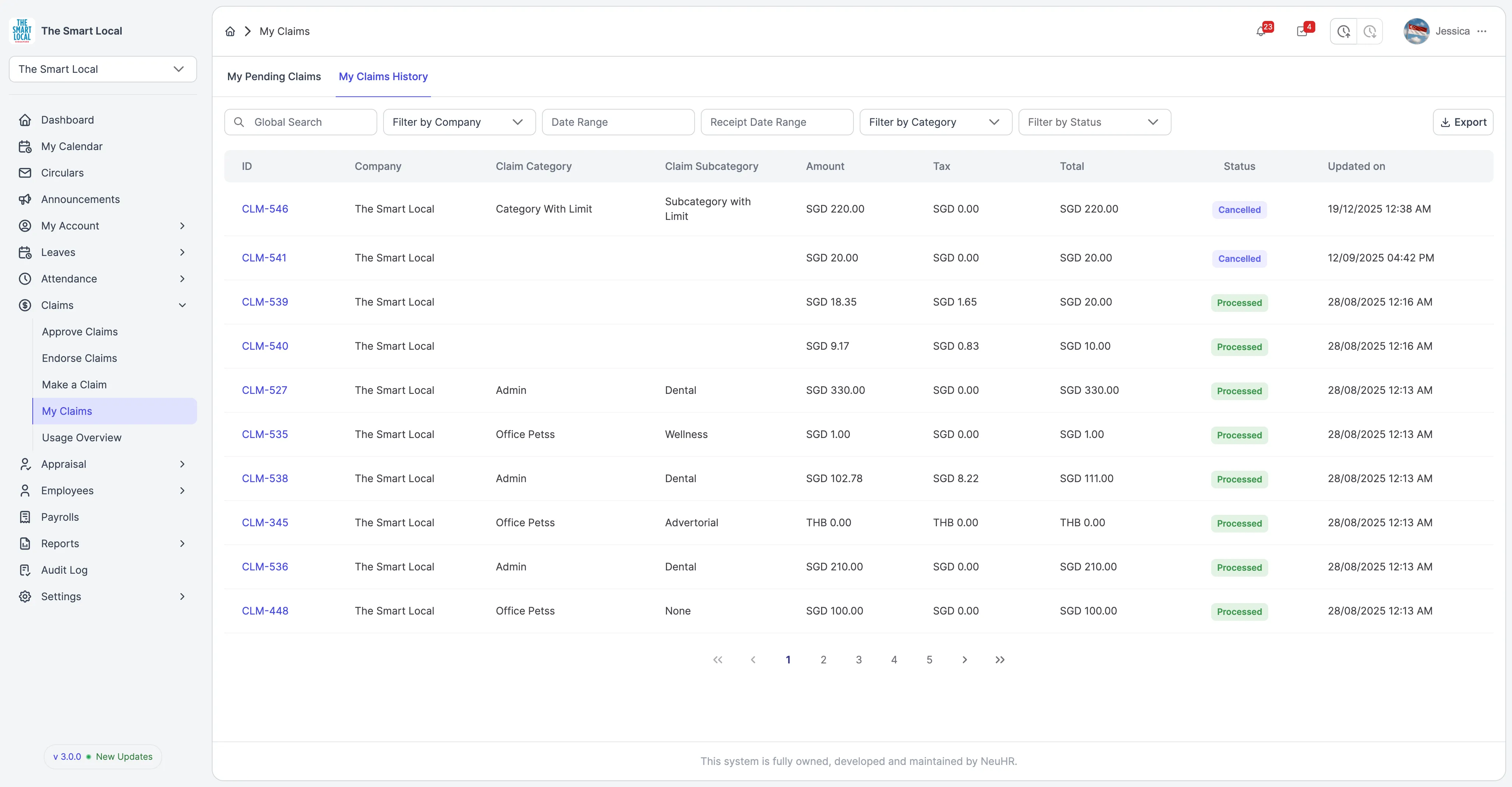
The My Claims History page will display a comprehensive table of all your submitted claims.
Step 3: View Your Claims History
Section titled “Step 3: View Your Claims History”The claims history table shows the following information for each claim:
- ID: Unique claim identifier (clickable link to view details)
- Company: The company the claim belongs to
- Claim Category: Main category of the claim (e.g., Transport, Dental, Admin)
- Claim Subcategory: Specific subcategory (e.g., Dental, Wellness, None)
- Amount: The claim amount before tax
- Tax: Tax amount applied (if any)
- Total: Total claim amount including tax
- Status: Current status of the claim (Processed, Cancelled, etc.)
- Updated on: Date and time when the claim was last updated
Step 4: Filter Your Claims
Section titled “Step 4: Filter Your Claims”Use the filter options at the top of the page to narrow down your claims:
Available Filters
Section titled “Available Filters”- Global Search: Enter keywords or claim ID to search for specific claims
- Filter by Company: Select a specific company to filter claims (if you have access to multiple companies)
- Date Range: Filter claims based on their submission date range
- Receipt Date Range: Filter claims based on the receipt date range
- Filter by Category: Select a specific claim category to view only those claims
- Filter by Status: Filter claims by their status (e.g., Pending, Processed, Cancelled)
Tip: Combine multiple filters to quickly find specific claims. For example, filter by “Processed” status and a specific date range to see all completed claims from that period.
Step 5: View Claim Details
Section titled “Step 5: View Claim Details”Click on any claim ID link (e.g., CLM-527) to view the full details of that claim.
The claim details page displays:
- Total Amount: The total claim amount
- Tax Amount: Tax applied (if any)
- Company: The company associated with the claim
- Claim Category: Main category
- Claim Subcategory: Specific subcategory
- Status: Current claim status
- Submitted By: Your name as the claimant
- Receipt Date: Date on the receipt
- Created Time: When the claim was submitted
- Receipts: Attached receipt images (clickable to view)
- Remarks: Any notes or additional information
- Endorsement History: Who endorsed the claim, when, and their remarks
- Processing History: Who processed the claim, when, and payment reference
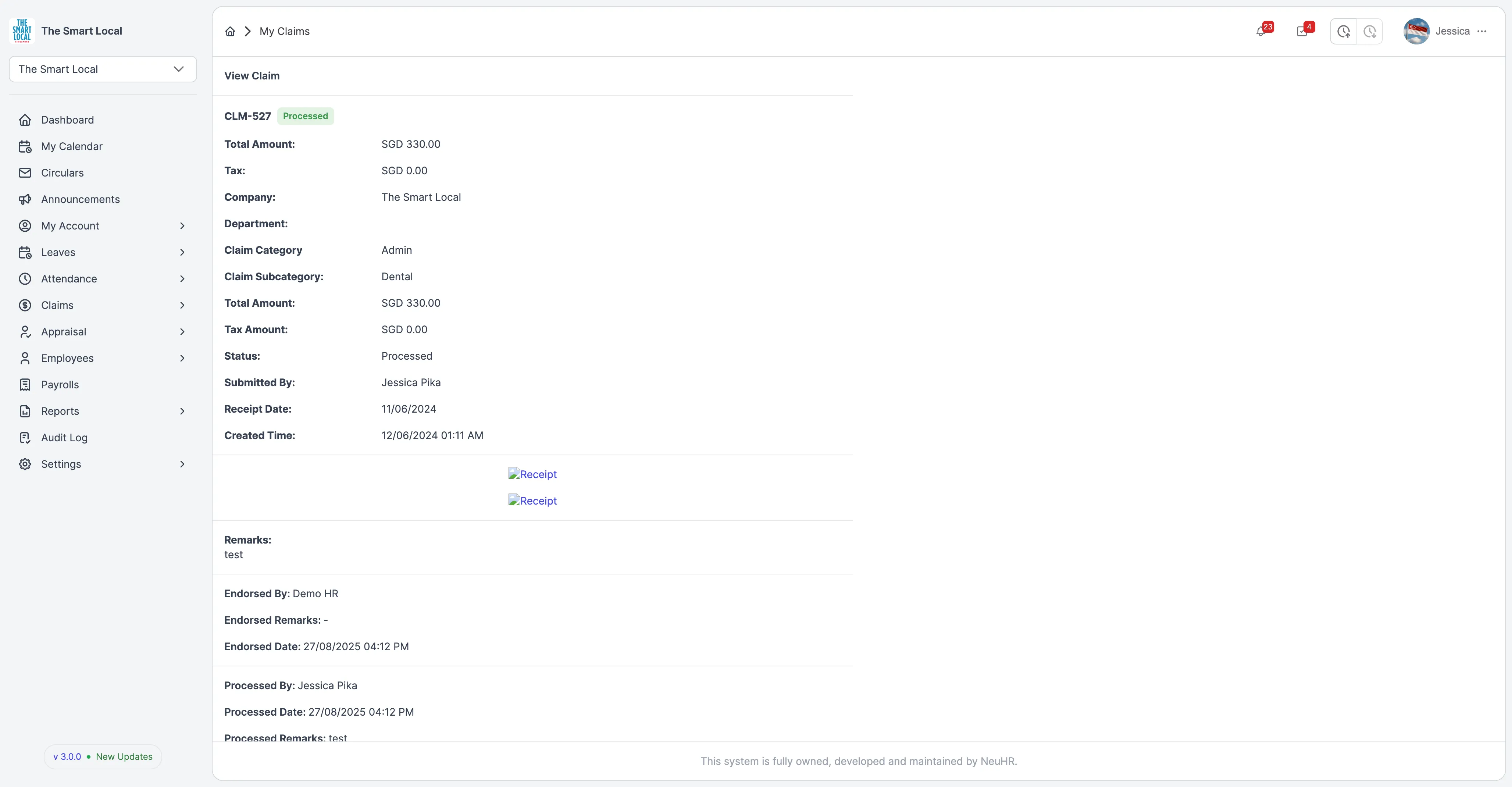
Note: You can click on receipt images to view them in full size. This is useful for verifying receipt details or downloading them for your records.
Step 6: Export Claims
Section titled “Step 6: Export Claims”Click the Export button to download your claims history for record-keeping, tax purposes, or reporting.
The export will generate a file containing all currently filtered claims (based on your active filters).
Tip: Apply specific filters before exporting to get only the data you need. For example, filter by a date range to export claims from a specific period.
Step 7: Navigate Through Pages
Section titled “Step 7: Navigate Through Pages”If you have many claims, use the pagination controls at the bottom of the page:
- First Page: Jump to the first page
- Previous Page: Go to the previous page
- Page Numbers: Click on specific page numbers to jump directly
- Next Page: Go to the next page
- Last Page: Jump to the last page
Claim Statuses
Section titled “Claim Statuses”Understanding the different claim statuses:
- Pending: Claim has been submitted and is awaiting endorsement or approval
- Processed: Claim has been approved and payment has been processed
- Cancelled: Claim has been cancelled (either by you or by the approver)
- Rejected: Claim has been rejected by the approver