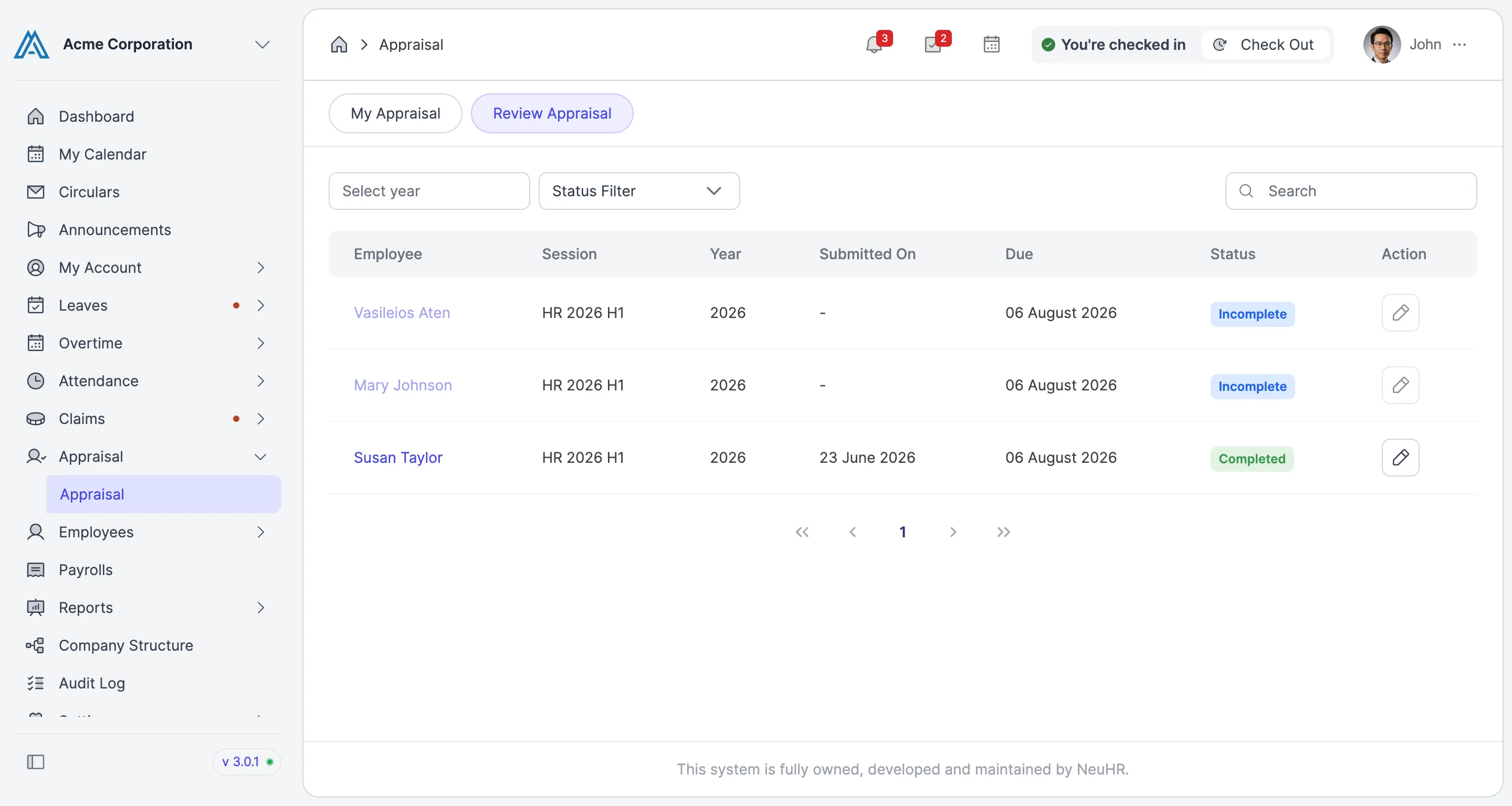
How to Review Appraisal as Appraiser
This guide shows you how to review and submit an appraisal for an employee you have been assigned as appraiser.
-
Navigate to Review Appraisal
Section titled “Navigate to Review Appraisal”From the sidebar, click on
Appraisalto expand the menu, then click onAppraisal. On the appraisal page, click theReview Appraisaltab.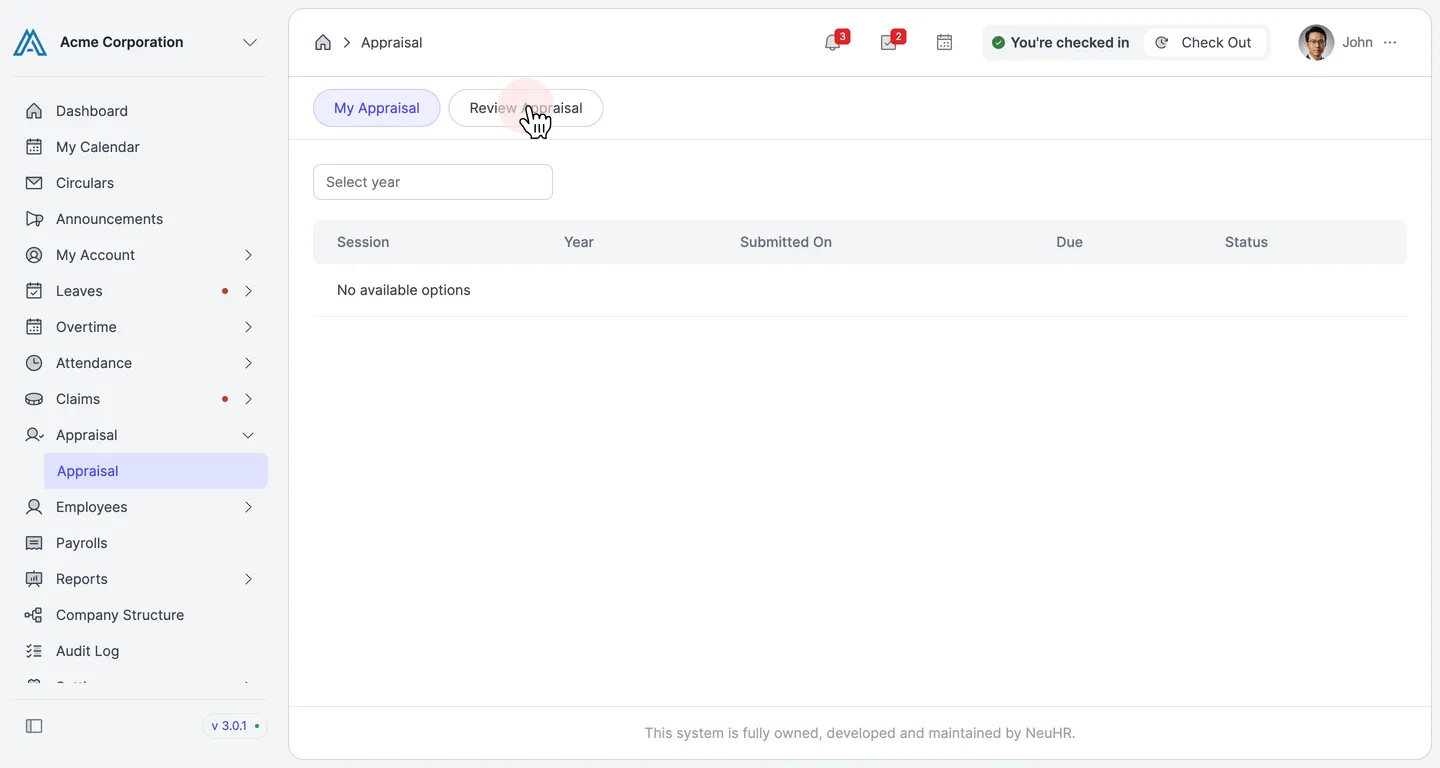
-
Select an Employee to Review
Section titled “Select an Employee to Review”The table lists all employees assigned to you as appraiser. Only employees with
In Reviewstatus have submitted their appraisal and are ready for your review. Click the employee’s name to open their appraisal.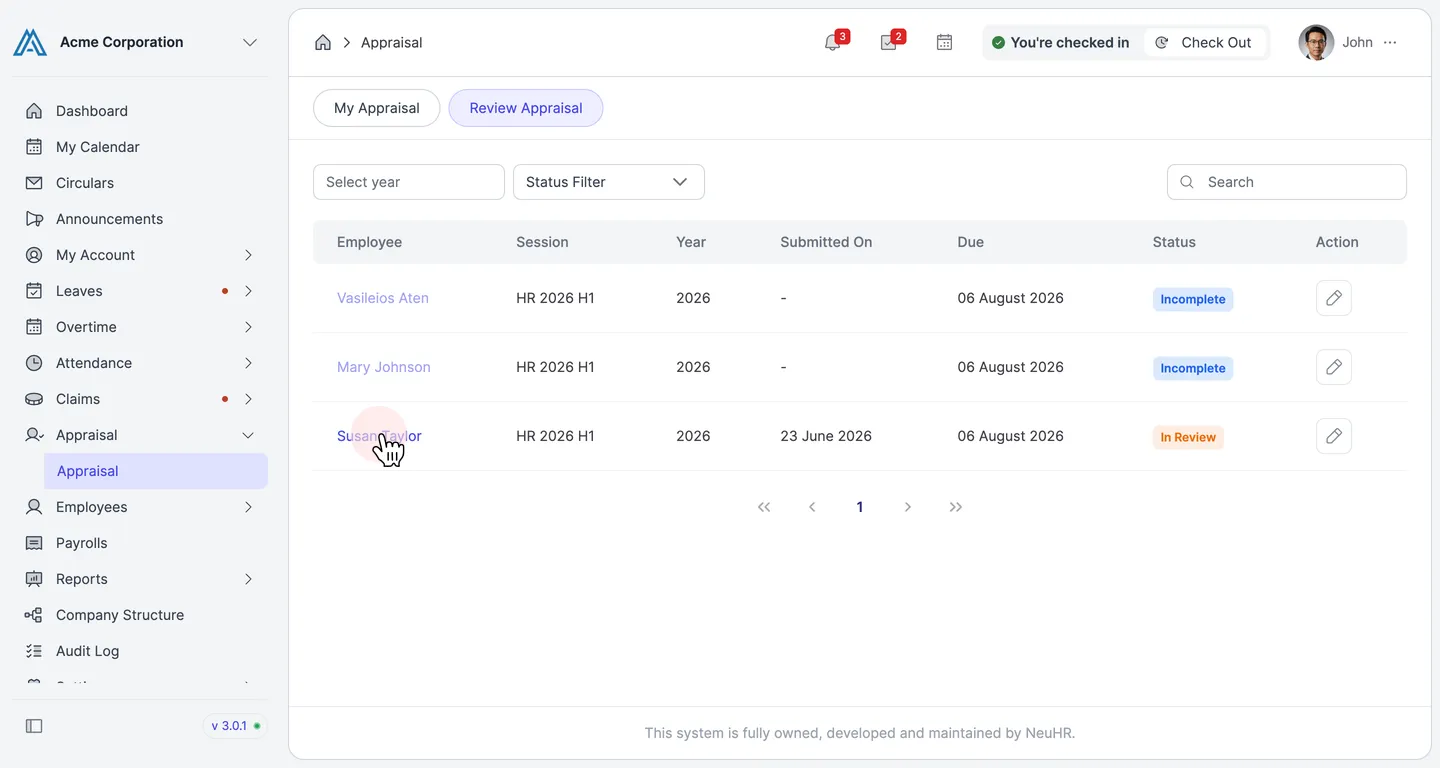
-
Review Notable Achievements and Add Feedback
Section titled “Review Notable Achievements and Add Feedback”The Review Appraisal Details page opens at the Notable Achievements section. You can see the employee’s responses for Core Areas of Performance and Other Areas of Performance in read-only fields. Optionally, enter your feedback in the Appraiser’s Feedback (Optional) column for each row.
Click
Next: Performance Assessmentsto continue.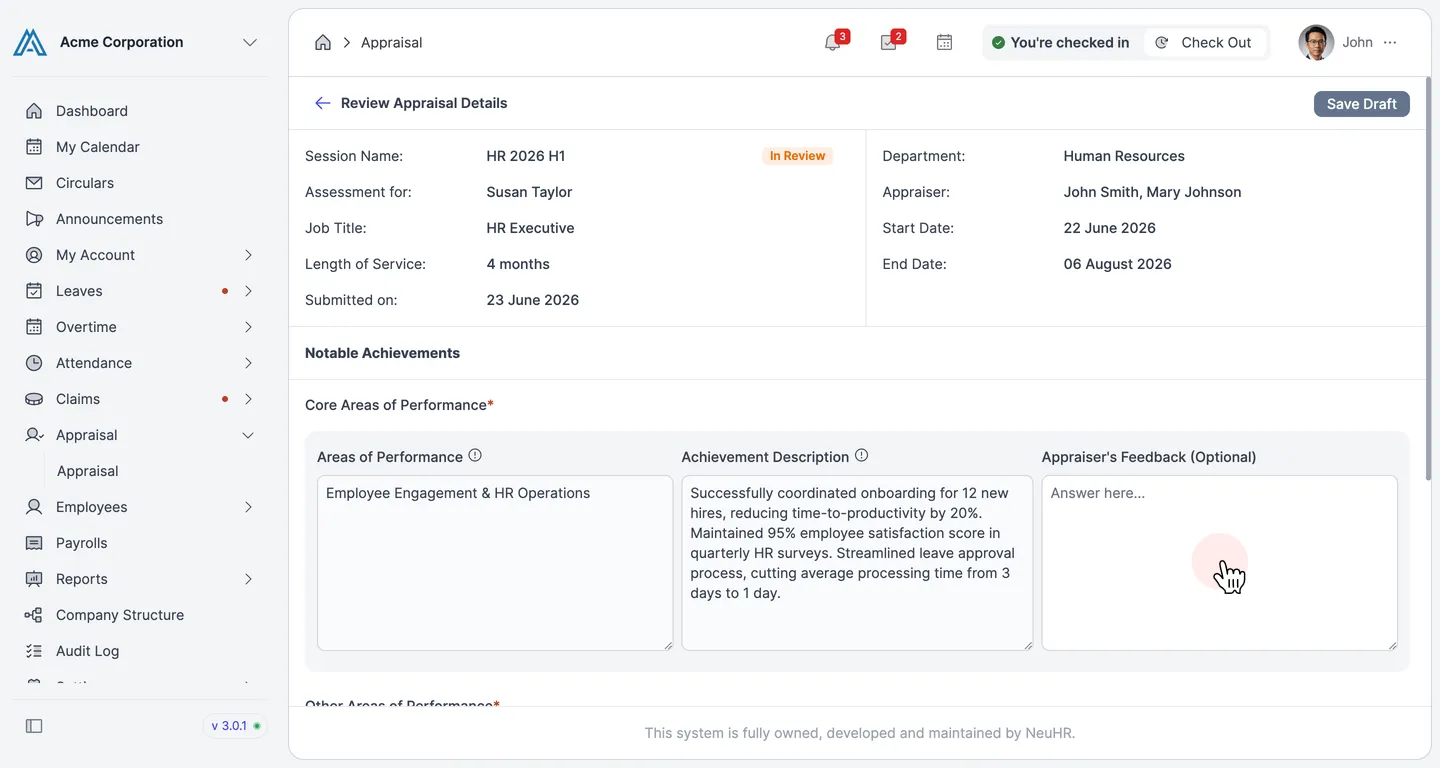
-
Rate Performance Assessments
Section titled “Rate Performance Assessments”In the Performance Assessments section, select a rating for each competency by clicking the appropriate level button — from
Basicthrough toVisionary. Optionally, enter overall remarks in the Remarks (Optional) field at the bottom.Click
Next: Goal Settingto continue.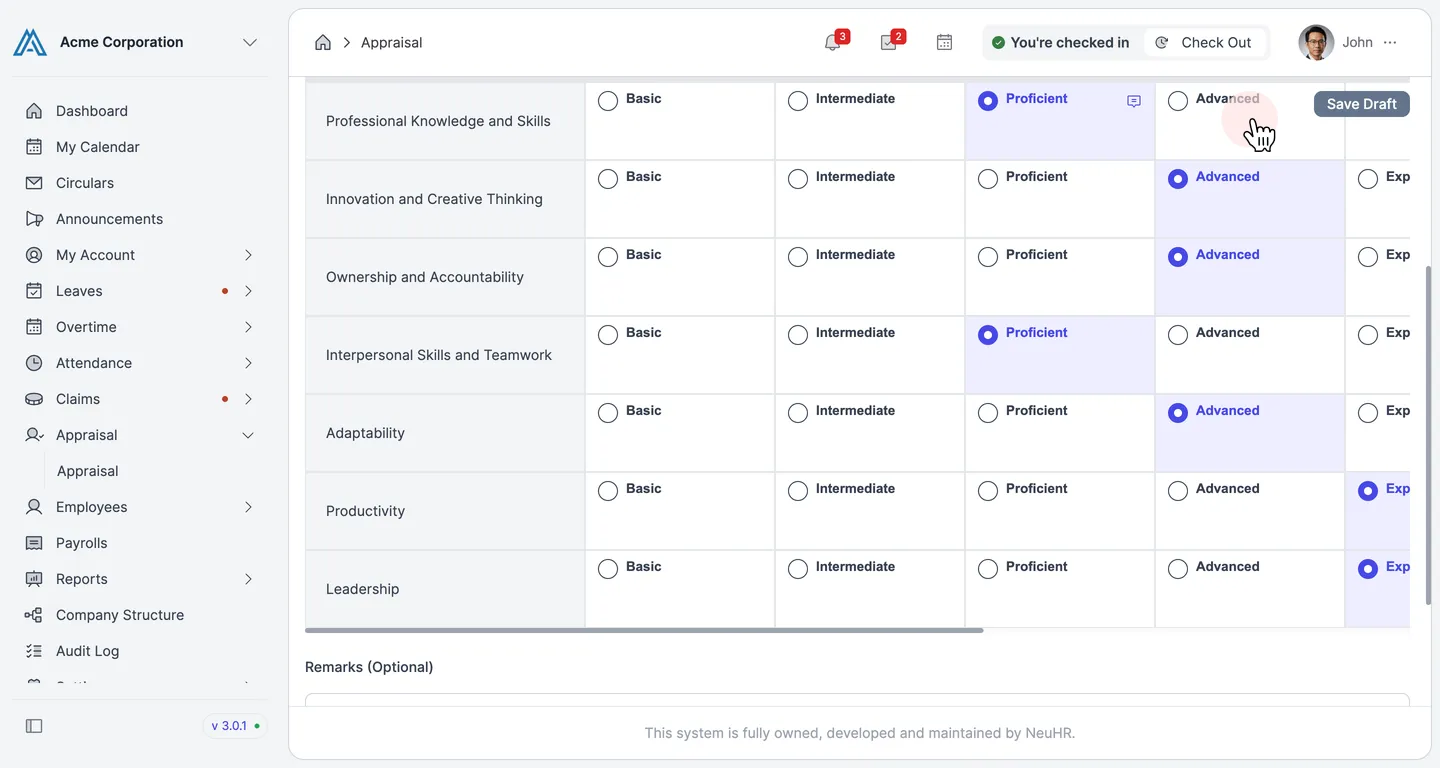
-
Add Goal Setting Comments
Section titled “Add Goal Setting Comments”In the Goal Setting section, you can read the employee’s goals and the support they need. Enter your response in the Appraiser’s Comment column.
Click
Next: Overall Ratingto continue.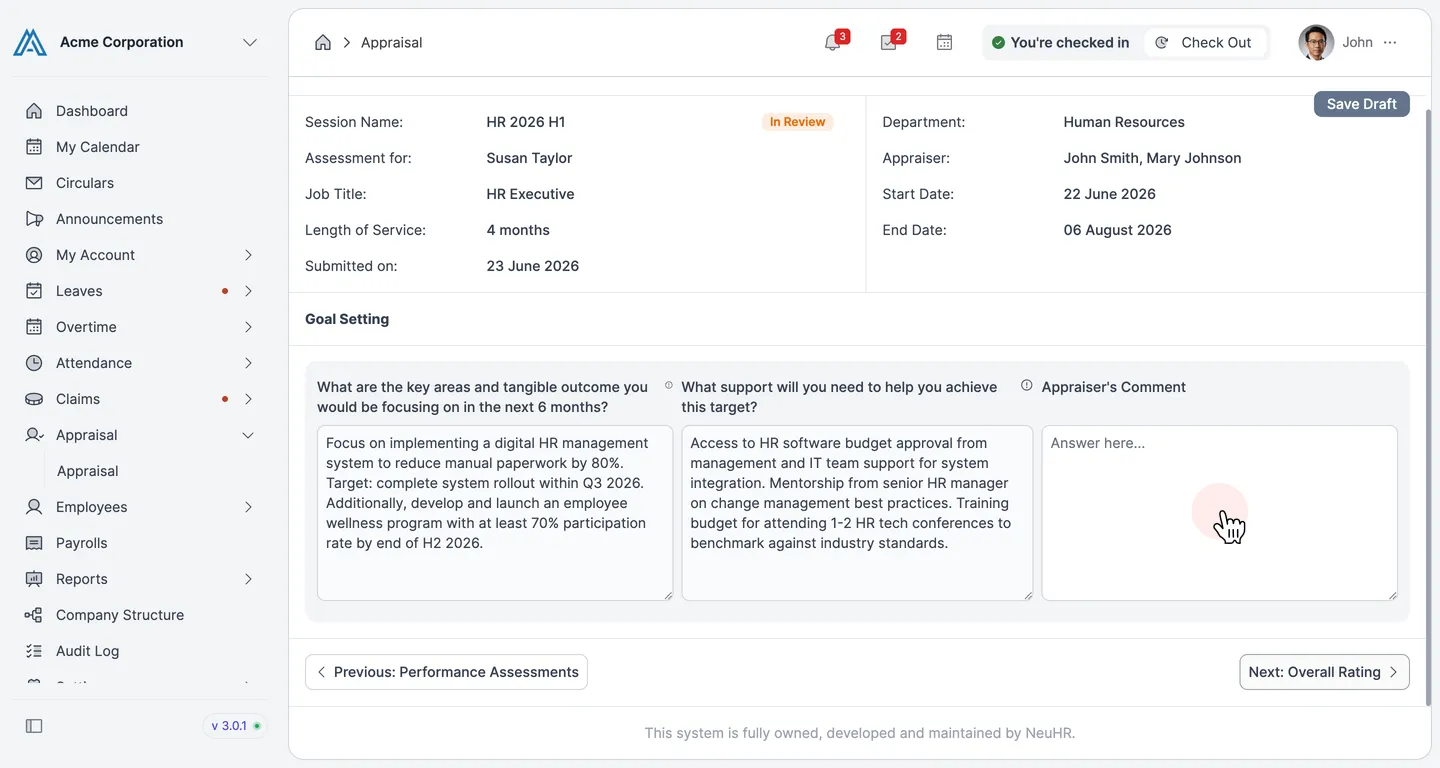
-
Set Overall Rating and Reviewer Remarks
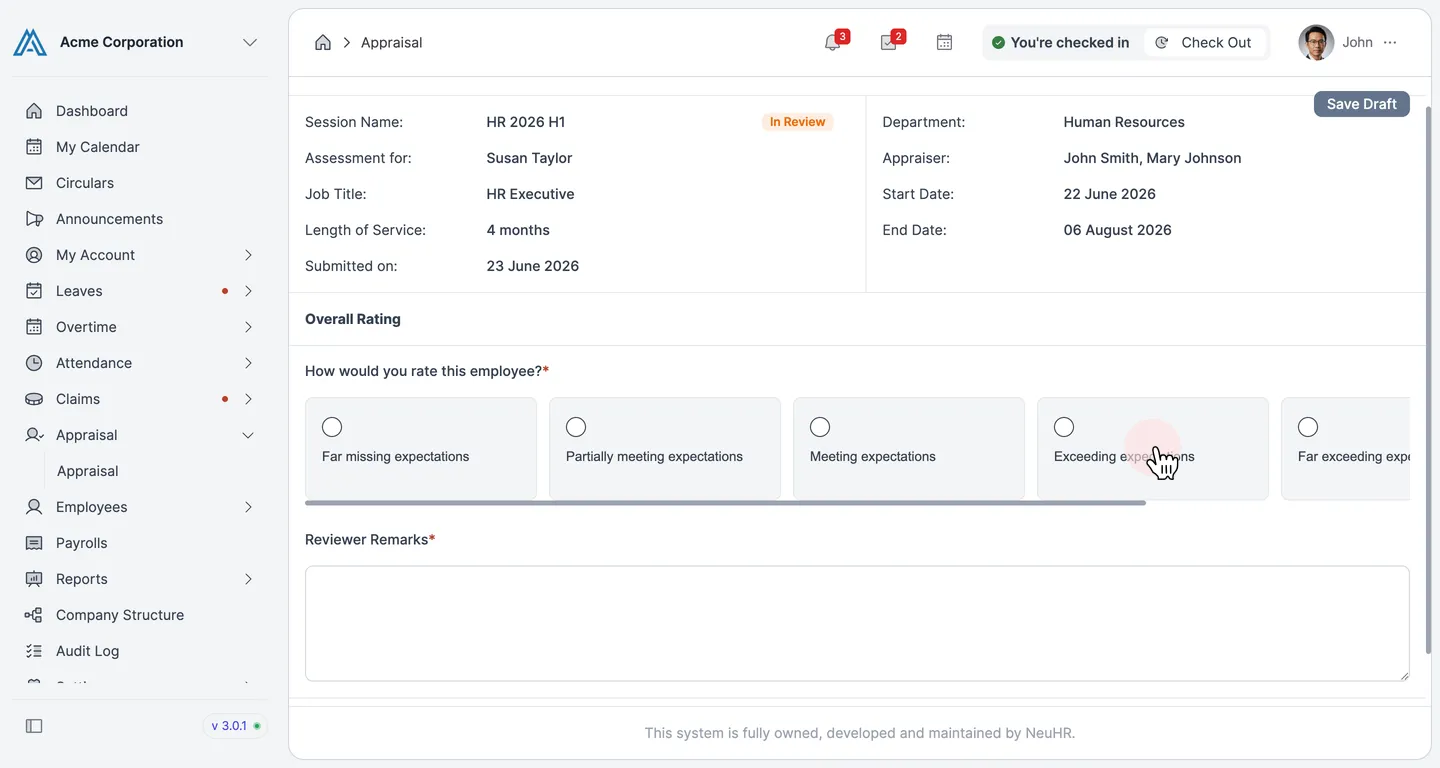
Section titled “Set Overall Rating and Reviewer Remarks”In the Overall Rating section, select an overall rating by clicking one of the rating buttons:
Far missing expectationsPartially meeting expectationsMeeting expectationsExceeding expectationsFar exceeding expectations
Then enter your summary feedback in the Reviewer Remarks field. Both fields are required before you can submit.
-
Submit the Review
Section titled “Submit the Review”When you are ready, click the
Submitbutton at the bottom right of the page.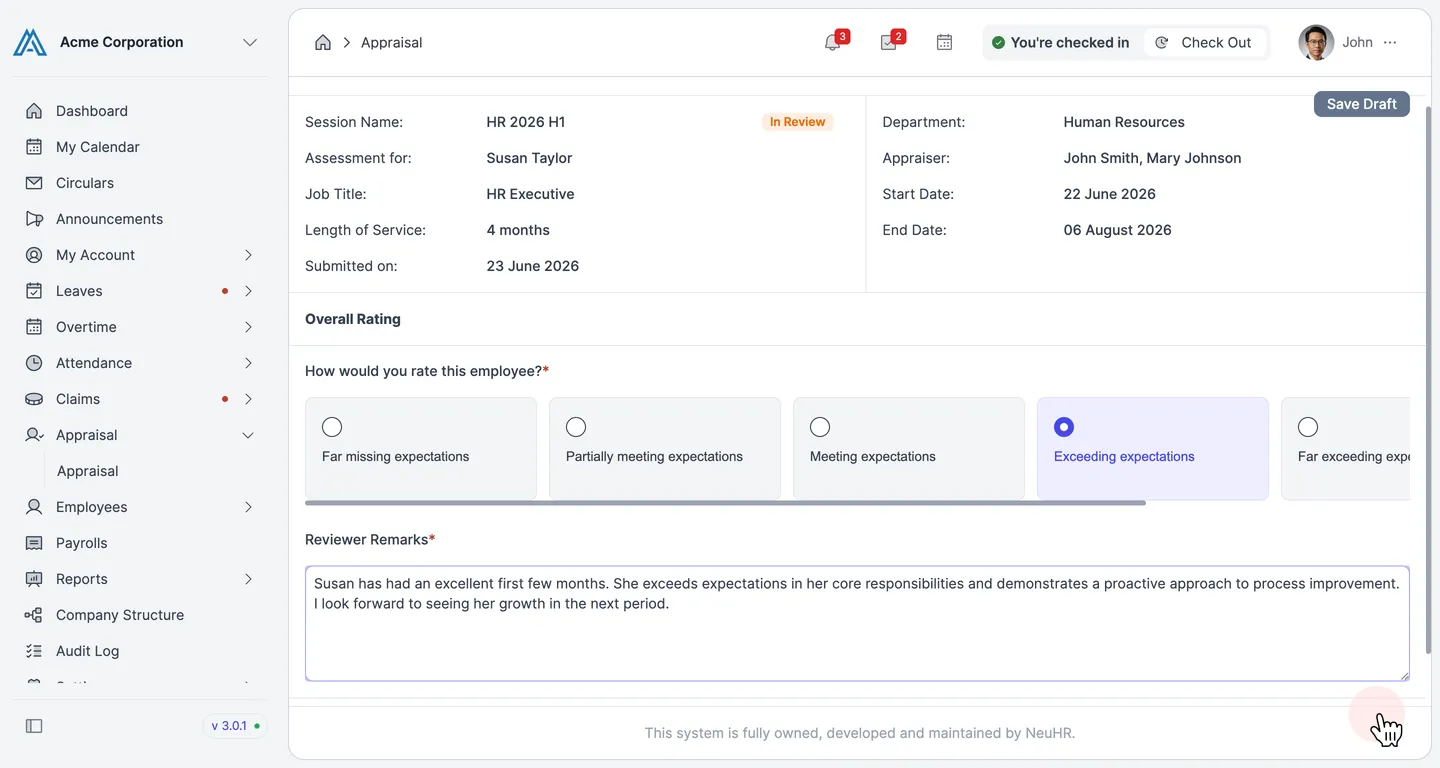
-
Confirm Submission
Section titled “Confirm Submission”A Submit Appraisal confirmation dialog appears. Click
Submitto confirm and finalise your review.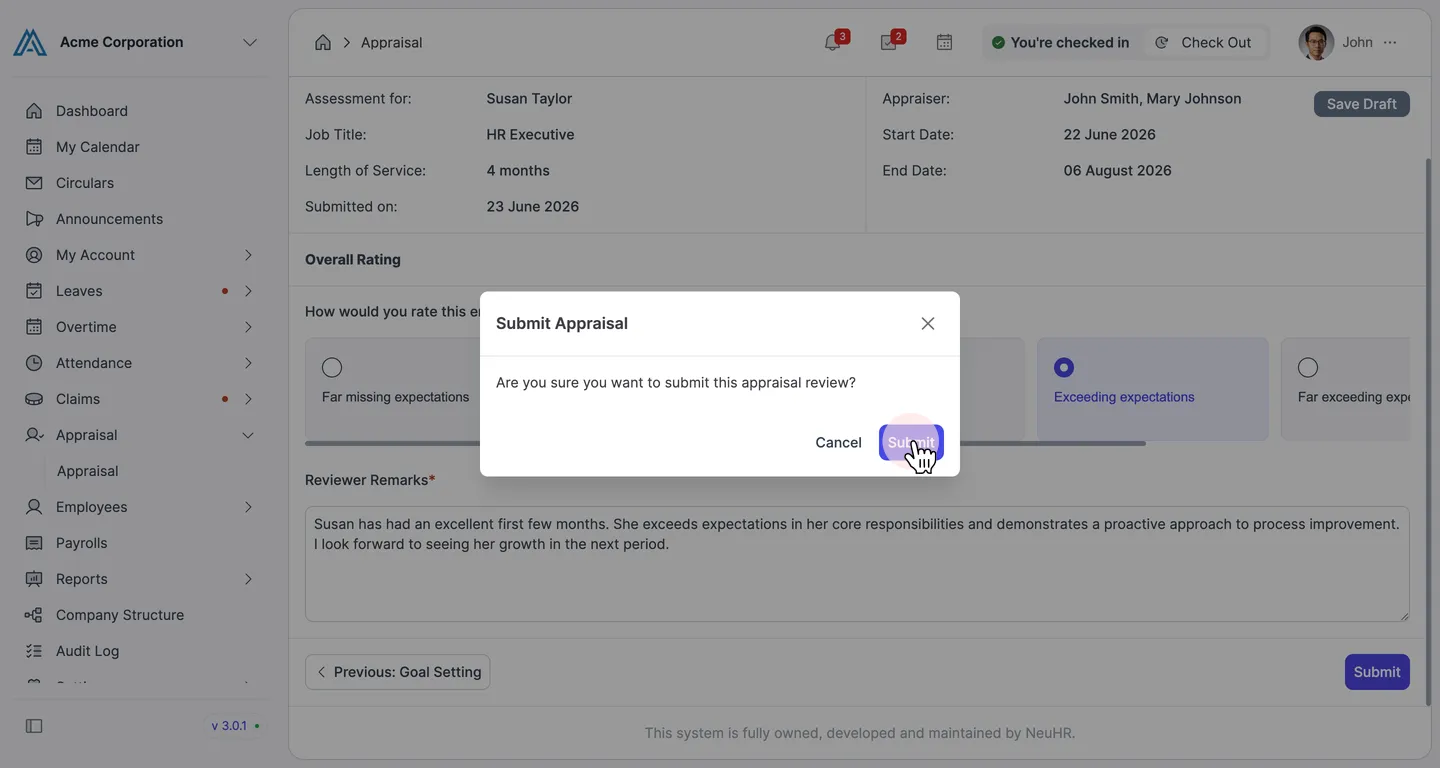
You will be returned to the Review Appraisal list and the employee’s status will update to
Completed. You will see a success message: “Appraisal submitted successfully”.