

How to Choose Which Department Will Be Visible in My Calendar
This guide shows you how to choose which department’s events appear in your calendar by subscribing to a department calendar feed.
-
Navigate to My Calendar
Section titled “Navigate to My Calendar”From the sidebar, click on
My Calendar.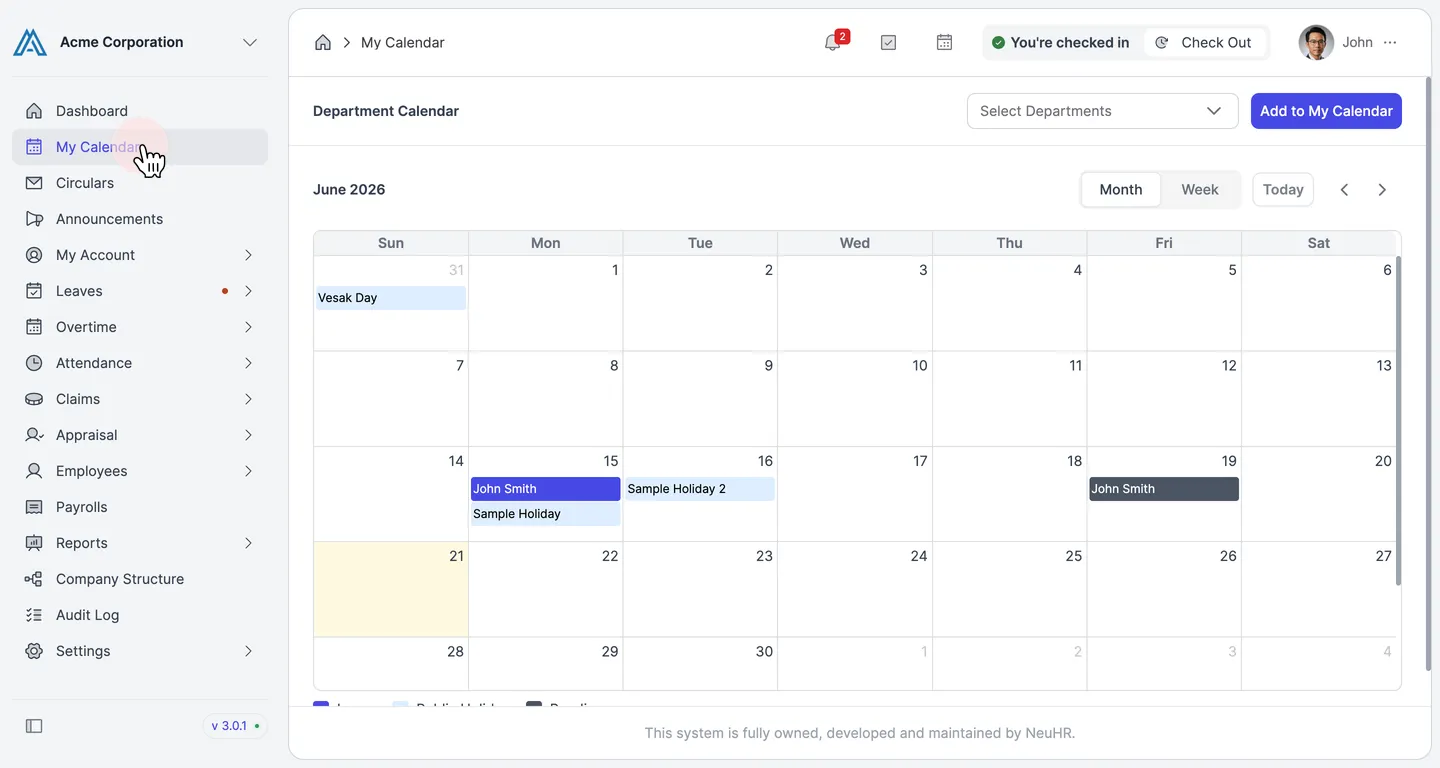
-
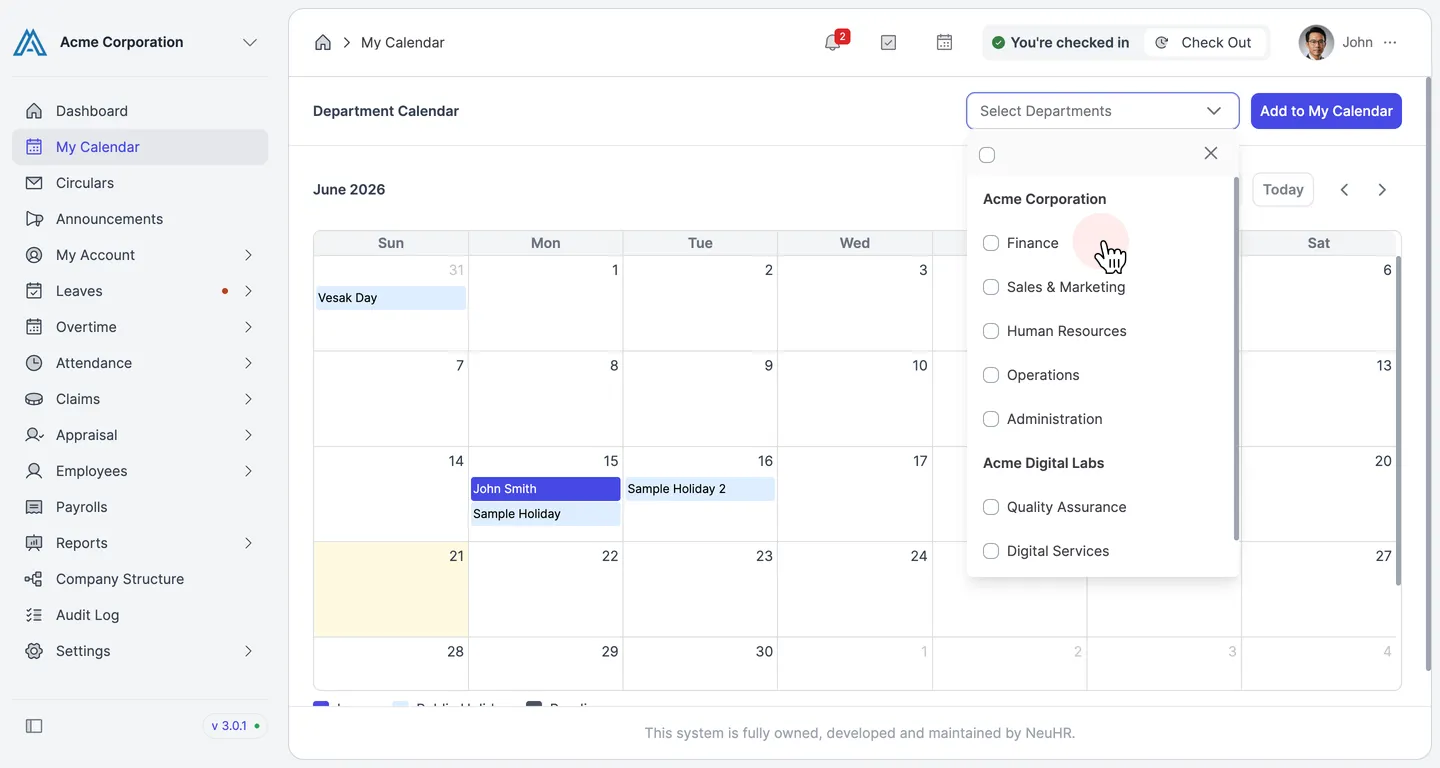
Select Departments
Section titled “Select Departments”In the
Department Calendarsection, click theSelect Departmentsdropdown to open the list of available departments.Check the checkbox next to each department whose events you want to include in your calendar.
-
Click Add to My Calendar
Section titled “Click Add to My Calendar”After selecting your department(s), click the
Add to My Calendarbutton.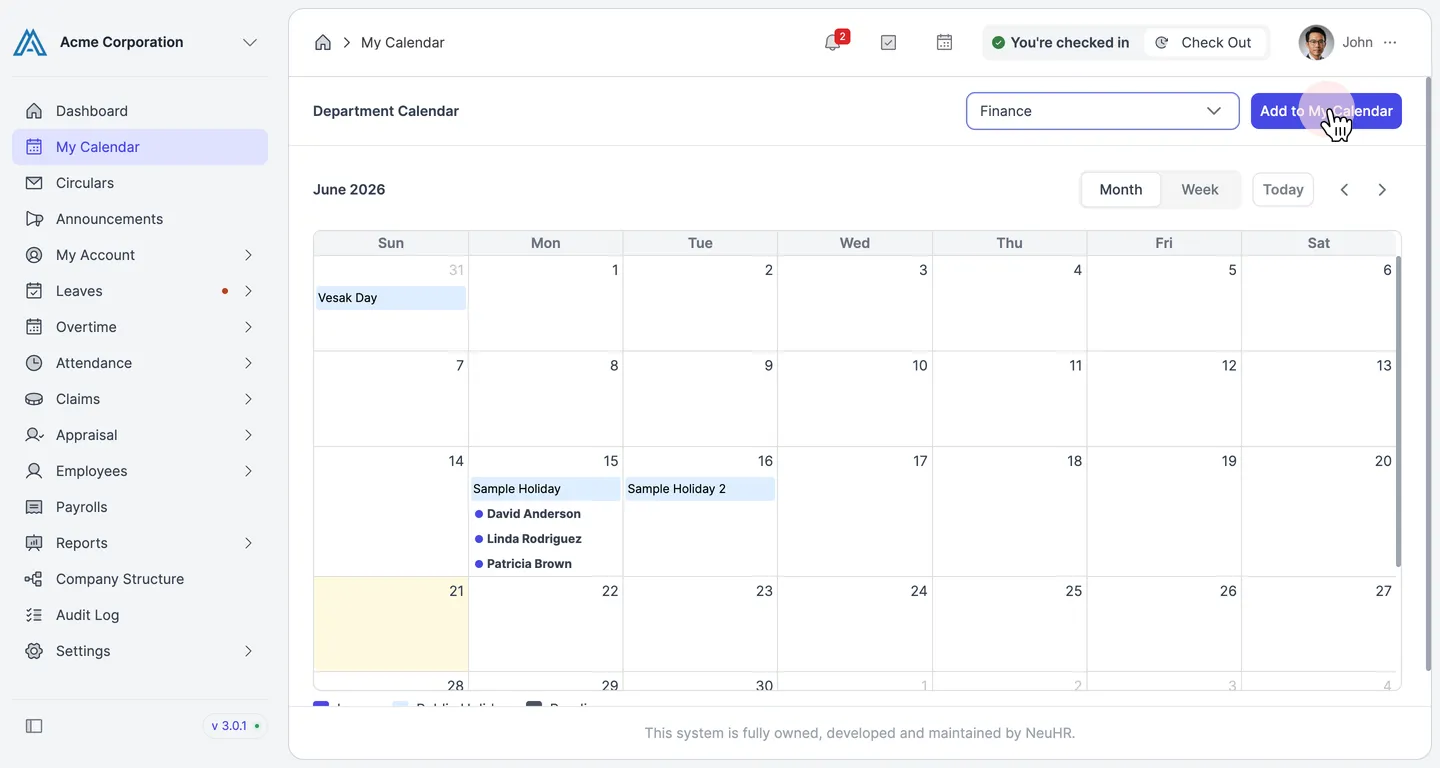
-
Copy the Calendar URL
Section titled “Copy the Calendar URL”A dialog appears with instructions for subscribing to the calendar. Click the
Copybutton to copy the iCal URL, then follow the instructions to add it to Google Calendar or Outlook.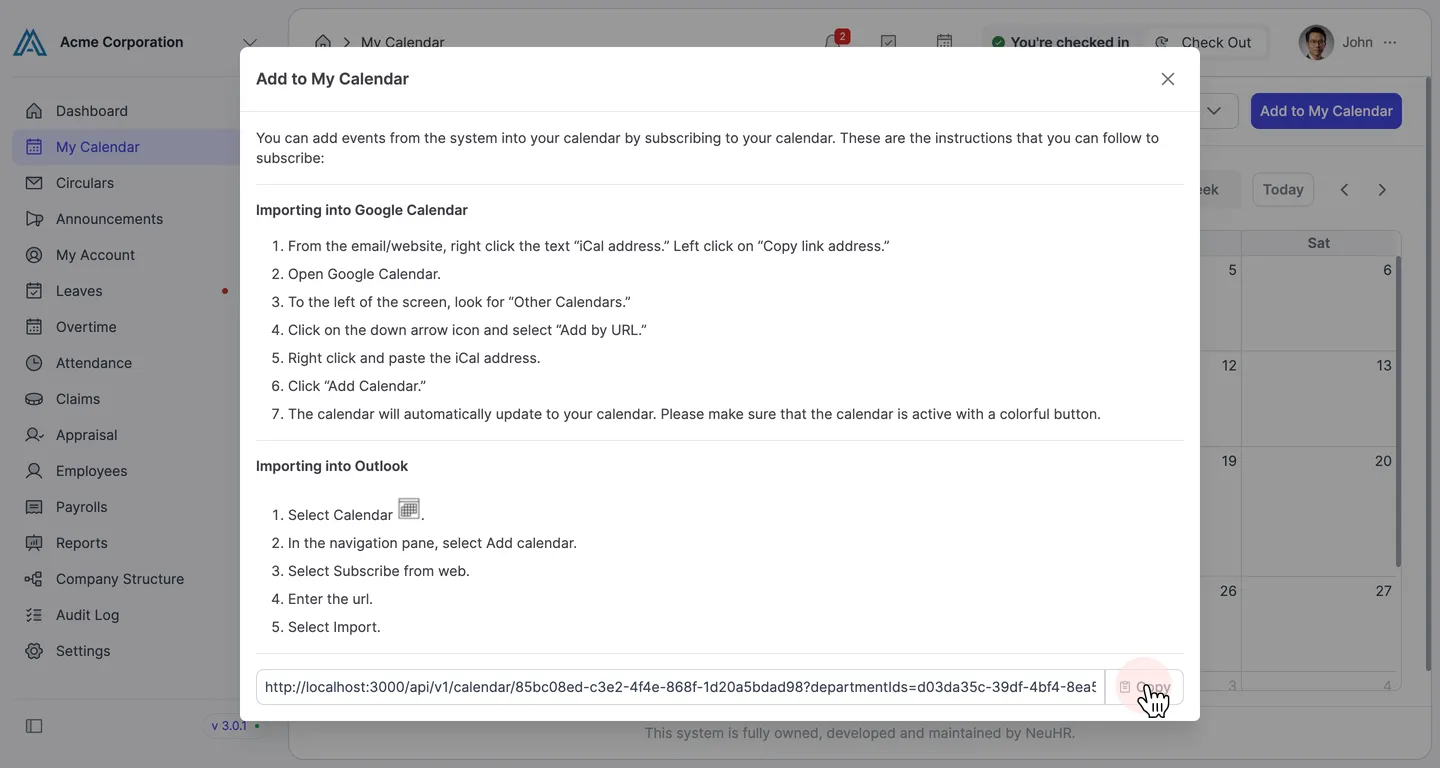
Your selected department’s leave events will now appear in your personal calendar app.