How to Update My Bank Details
This guide shows you how to update your bank account details in NeuHR.
-
Navigate to Profile
Section titled “Navigate to Profile”From the sidebar, click
My Accountto expand the menu, then clickProfile.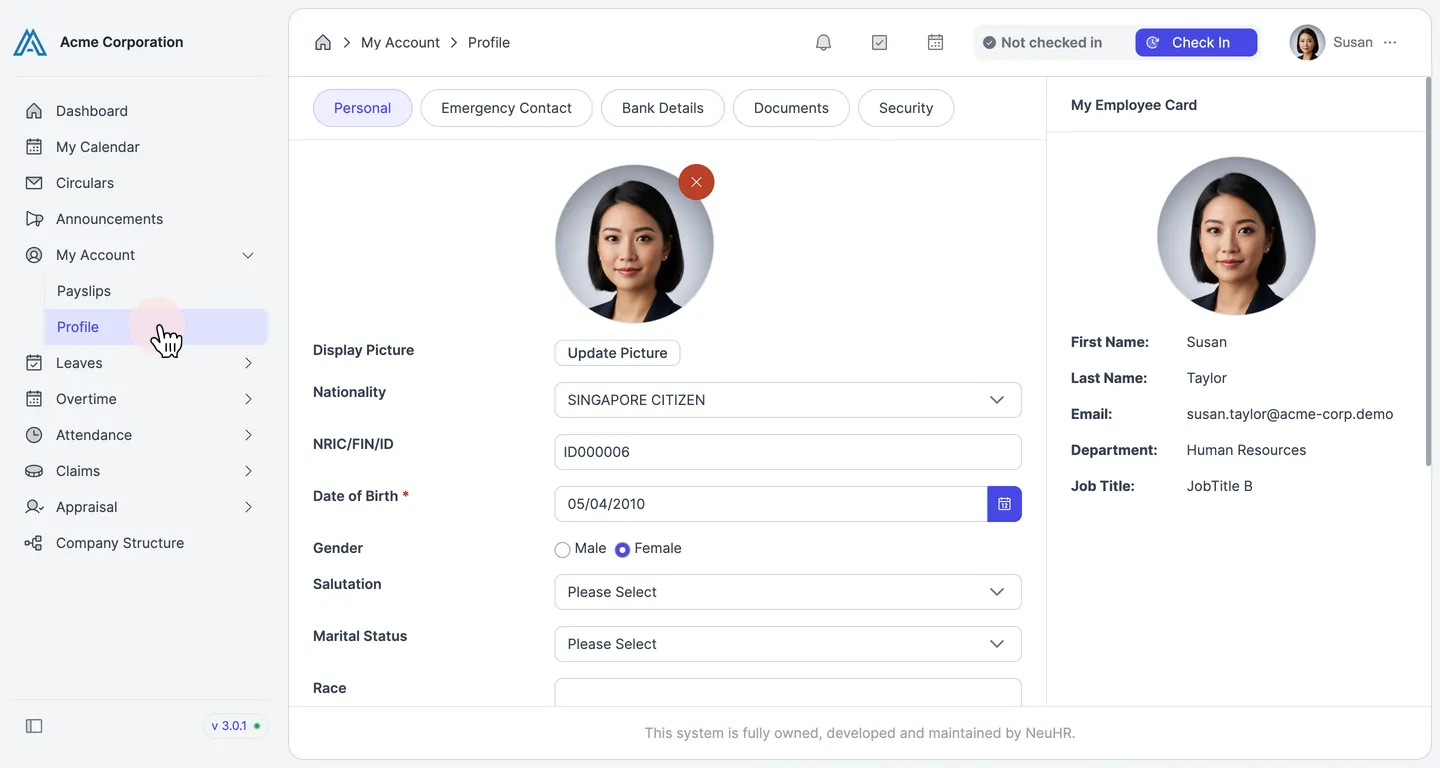
-
Click the Bank Details Tab
Section titled “Click the Bank Details Tab”On the Profile page, click the
Bank Detailstab.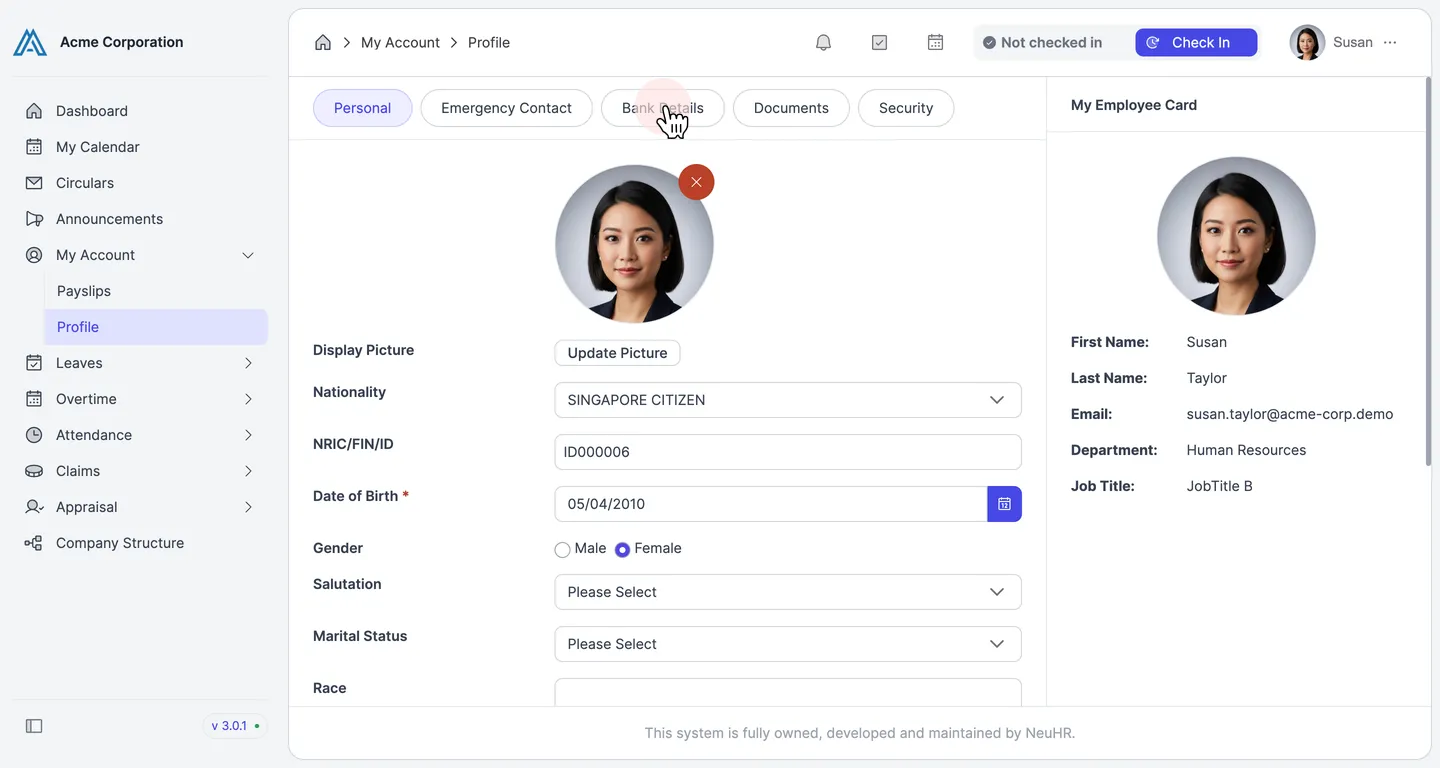
-
Select Your Bank Name
Section titled “Select Your Bank Name”Click the
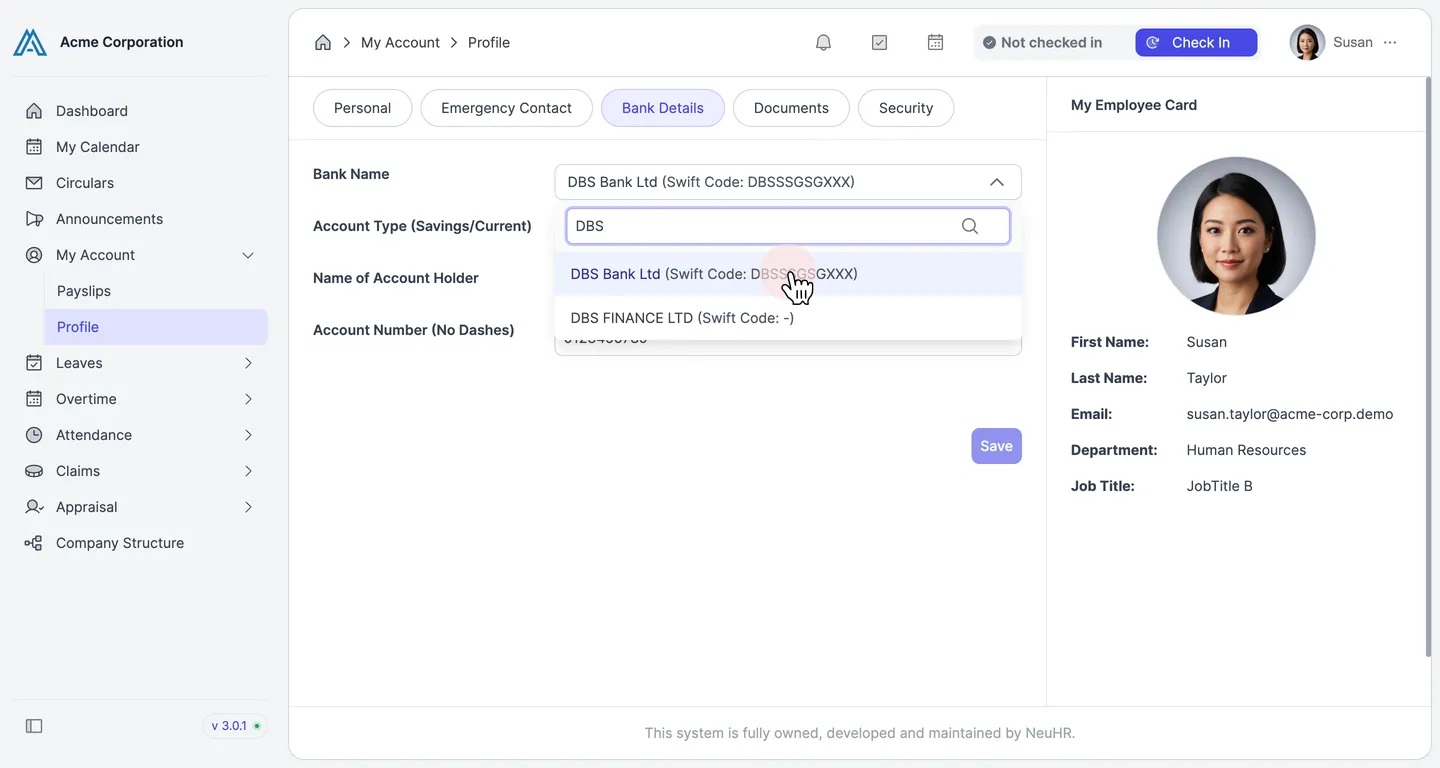
Bank Namedropdown to open the bank list.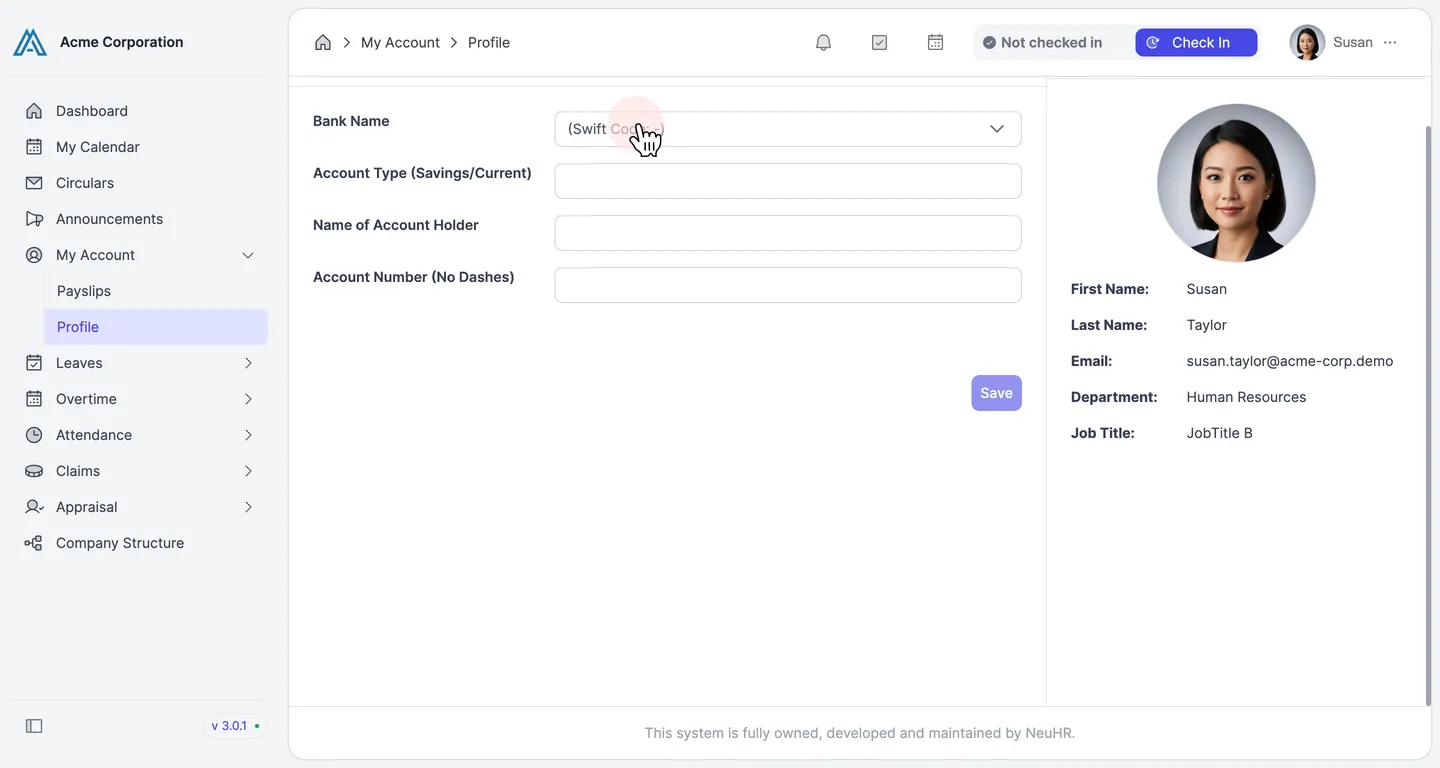
Type your bank name in the search box to filter the list, then select your bank. The Swift code will appear automatically next to the bank name.
-
Fill in Your Account Details
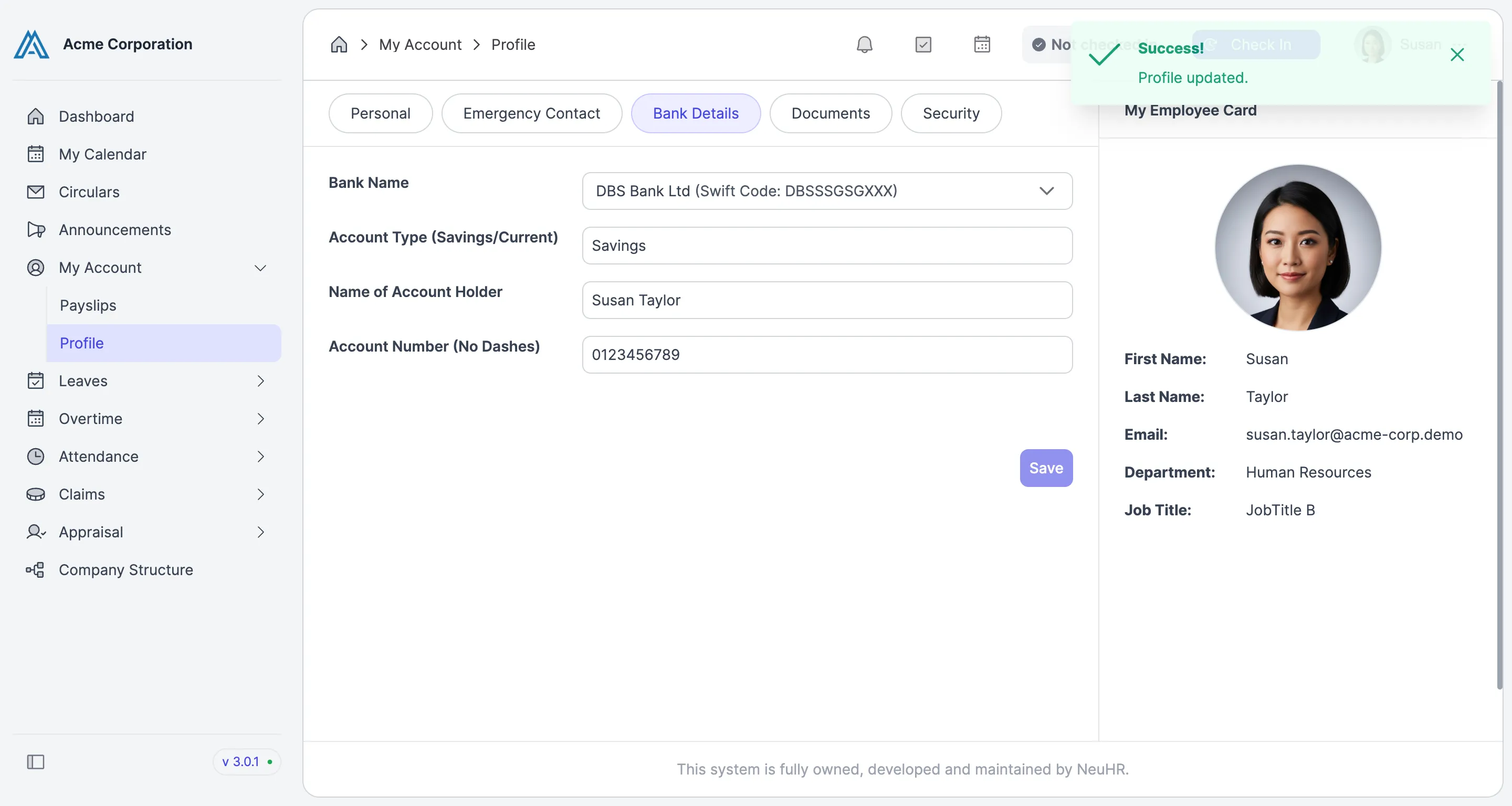
Section titled “Fill in Your Account Details”Enter the remaining fields:
- Account Type (Savings/Current): Enter
SavingsorCurrent - Name of Account Holder: Your full legal name as shown on your bank account
- Account Number (No Dashes): Your account number without spaces or dashes
When done, click
Save.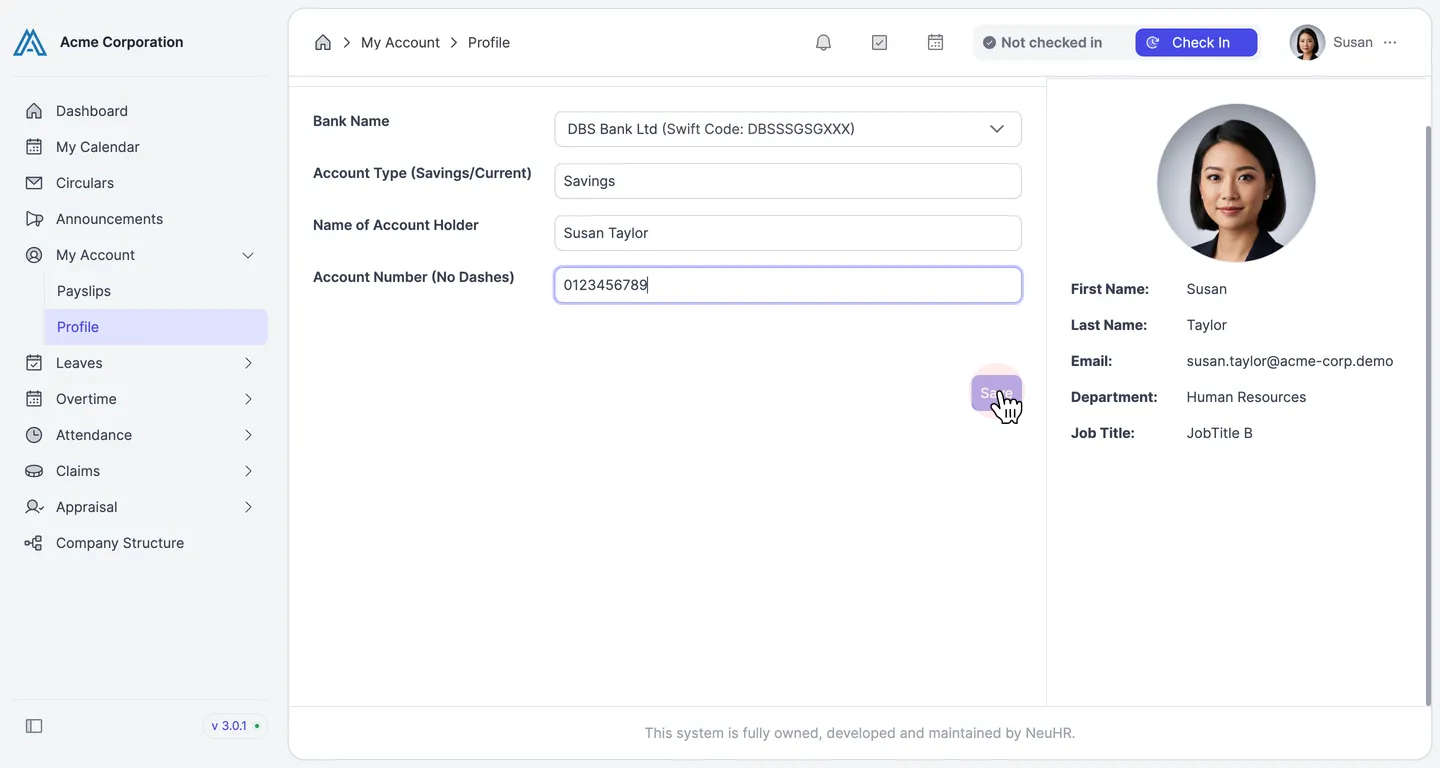
- Account Type (Savings/Current): Enter
-
Confirm the Update
Section titled “Confirm the Update”You’ll see a success message: “Profile updated.” Your bank details have been saved.